Open an online shop that looks like your brand
Ultineo E-commerce gives you the tools to build your shop: its look, its pages, its catalogue, its checkout and the follow-up of its orders, without writing code. You prepare everything in your workspace, then put the shop online on its provided address or on your own domain.
What stands in the way of opening a shop
- No code to write
A shop has to look like your brand, and you may have nobody to write code for it. You choose a theme, place ready-made blocks and fill in your texts and photos, without writing code.
- Taking payments online
Selling online means collecting payments, which starts with a payment account your shop can use. You connect your shop’s own Stripe, Adyen or PayPal account in the payment settings, then follow each payment with its order.
- An address of your own
Customers find a shop again by its address, so that address should belong to your brand. Your shop can start with its provided address, then you connect a domain you already own, with guided ownership and address checks.
Go further into this use case
- Move an existing shop
Bring your catalogue, your sales history and your domain to a new shop, and check each step.
- Manage a catalogue
Keep a growing range consistent: shared terms, grouped versions, stock per condition, changes by file.
- Take payments
Connect your payment account, then follow each payment with its order and its recorded state.
How opening your shop works, step by step
-
1
Set the common look Set the main palette, fonts and buttons in the theme before you refine a particular area. You avoid conflicting visual choices along the buying journey.
-
2
Create pages and products Create each section from an existing type, then place it on its page and set its order. Give each product its record in the catalogue, with its photos, its description, its price and its stock.
-
3
Connect payment and address Connect your payment account in the payment settings, with the verification steps its provider requires. In Publication, choose the word of the provided address or declare a domain you own.
-
4
Put the shop online Put the shop online from Publication and follow its current state until the address answers. Then open the shop and go through the actual buying path: a publication state alone does not confirm every setting.
Set the look of the whole shop once
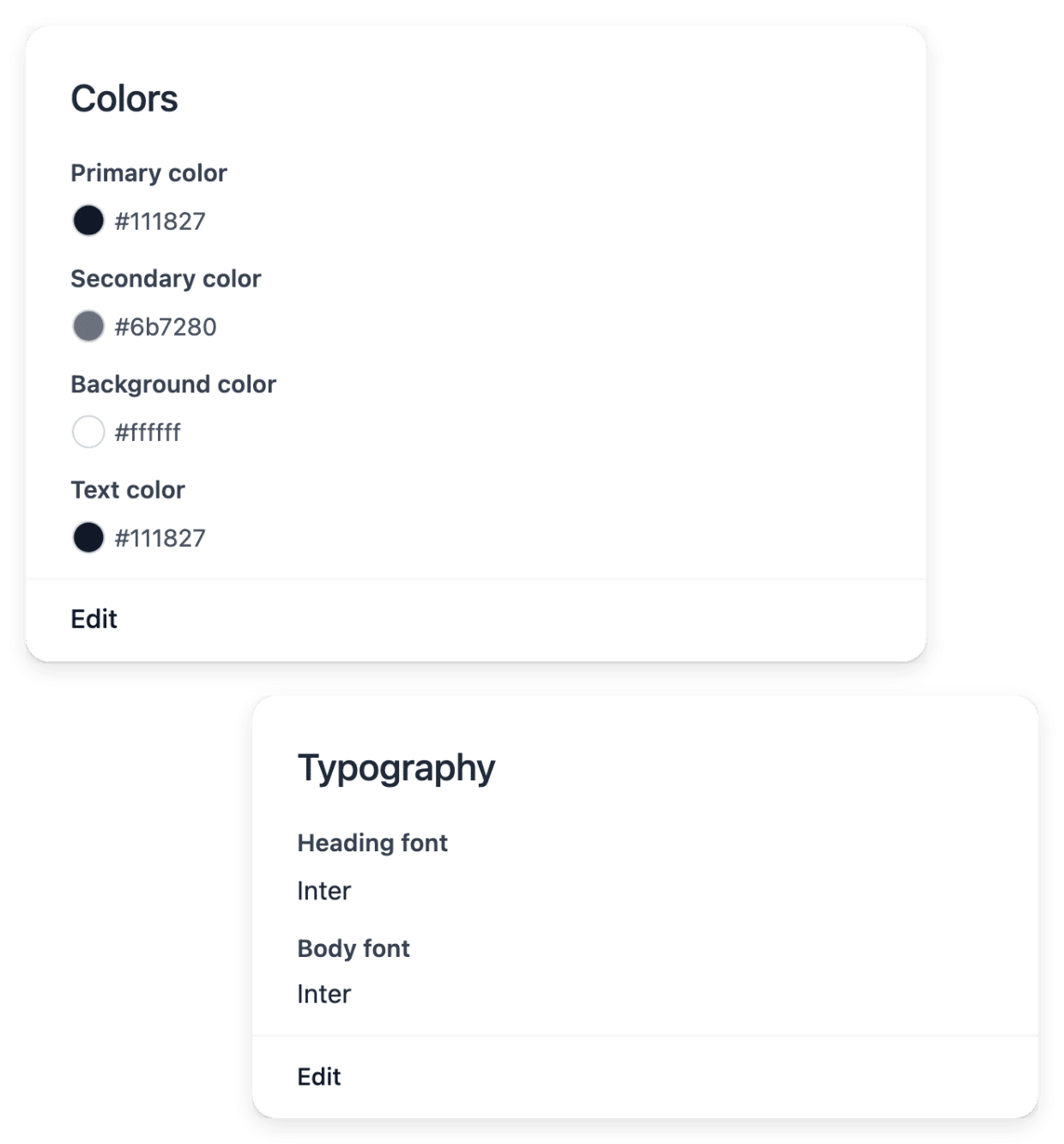
In the theme, you choose the palette, the heading and body fonts, the button style and the spacing, and these shared settings apply across the shop. The cart, checkout, payment and confirmation pages follow the same theme, so your customer recognizes the same shop as the purchase moves forward.
A theme changes presentation: it does not rewrite your product information or arrange the content of every section for you. The shop name, the logo and the contact details are kept in Identity, and you can preview the theme and restore the default appearance when needed.
Compose your pages from ready-made blocks
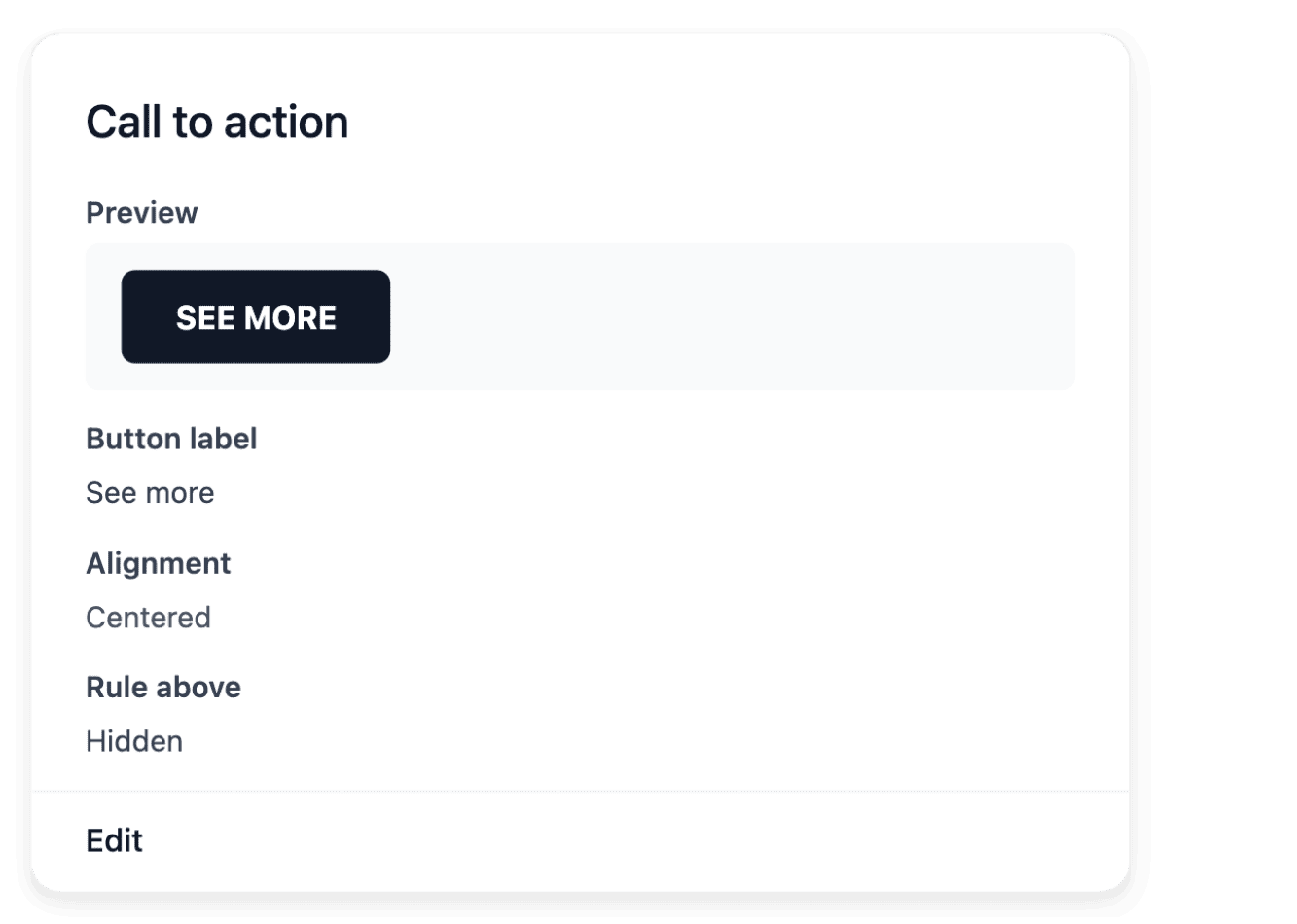
Choose an available block, such as a banner, a gallery, a product rail, a review wall or a press band, and fill in the fields of its type with your own content. A page then selects its sections and puts them in order, and one section can be placed on several pages. You keep a page as a draft while you write it, then publish it when it is ready.
You build from the supported section types and their content fields, not from custom code. A change to a shared section reaches every page where it is placed, so review those pages before you edit it.
Build a catalogue that is ready to sell
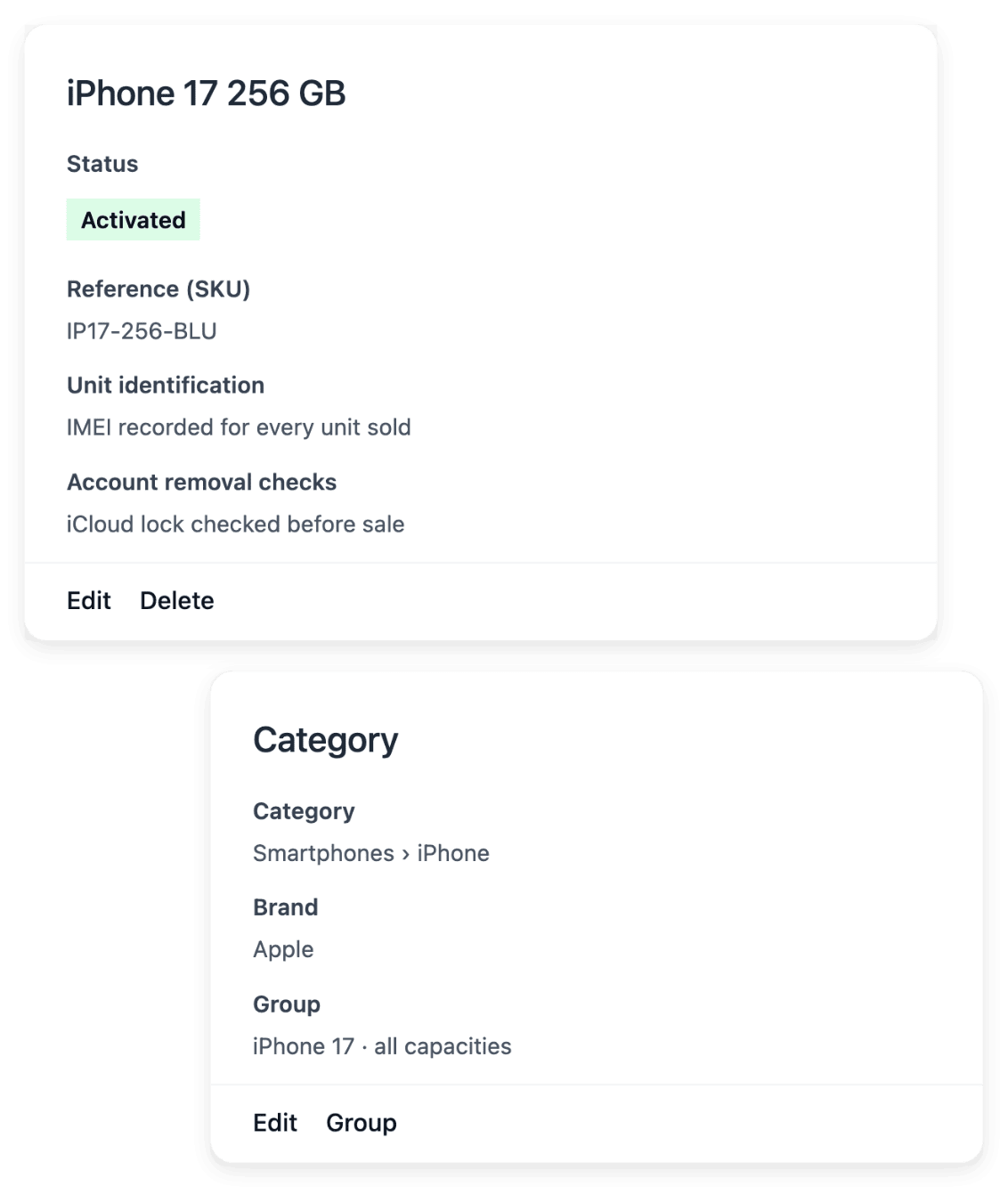
Each product has its own record: start with its name, reference, description, category and brand, then add its images and characteristics. Categories and subcategories organize the range so that shoppers can browse it, and your storefront and your orders read the same record. You prepare a product as a draft, then put it on sale, pause it or withdraw it.
Each version of a product keeps its own price and stock, and you review both together on the product record. The catalogue manages what you sell and its recorded stock: supplier orders and stock accounting remain separate processes.
Follow each order with its payments and shipments
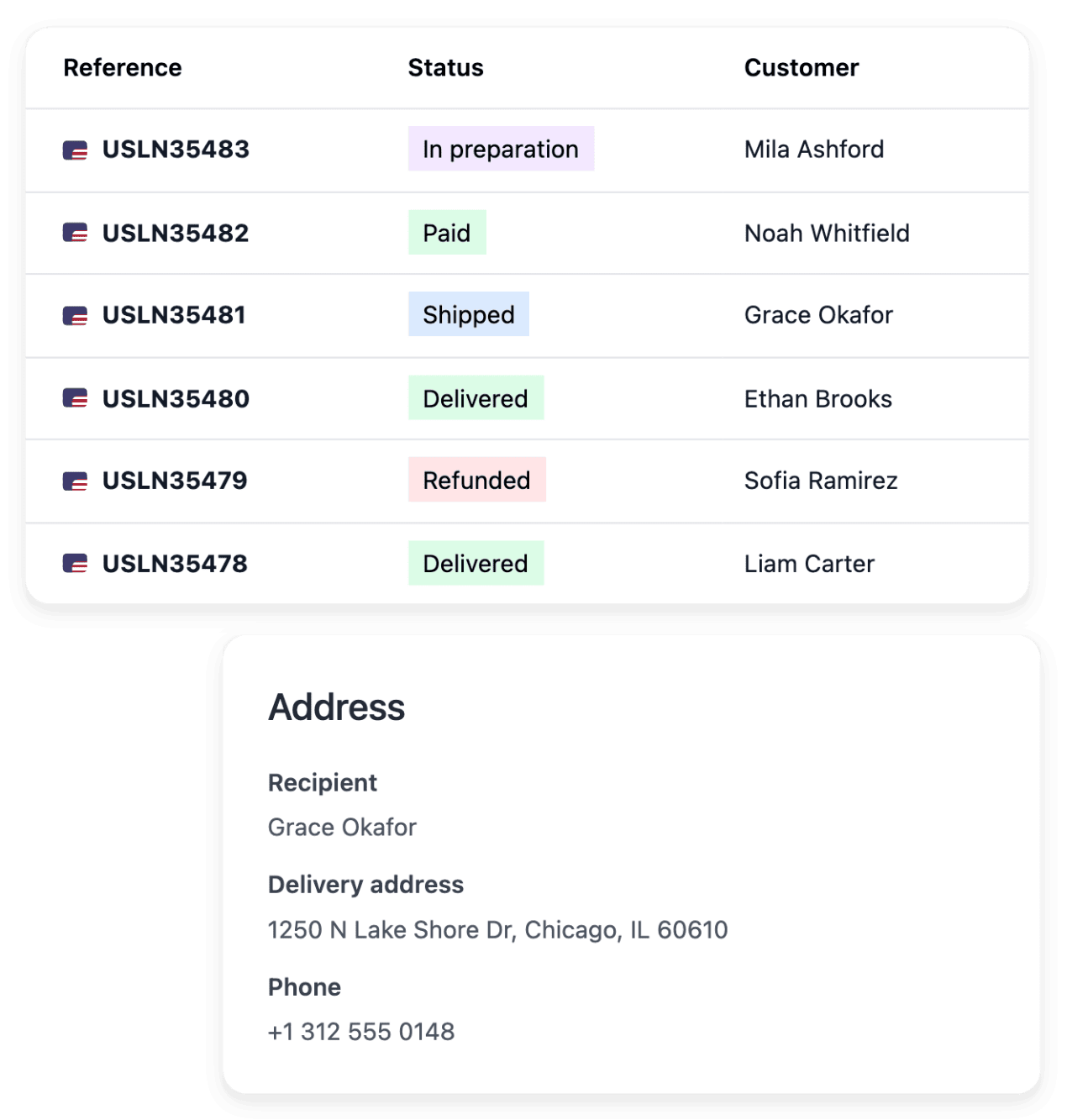
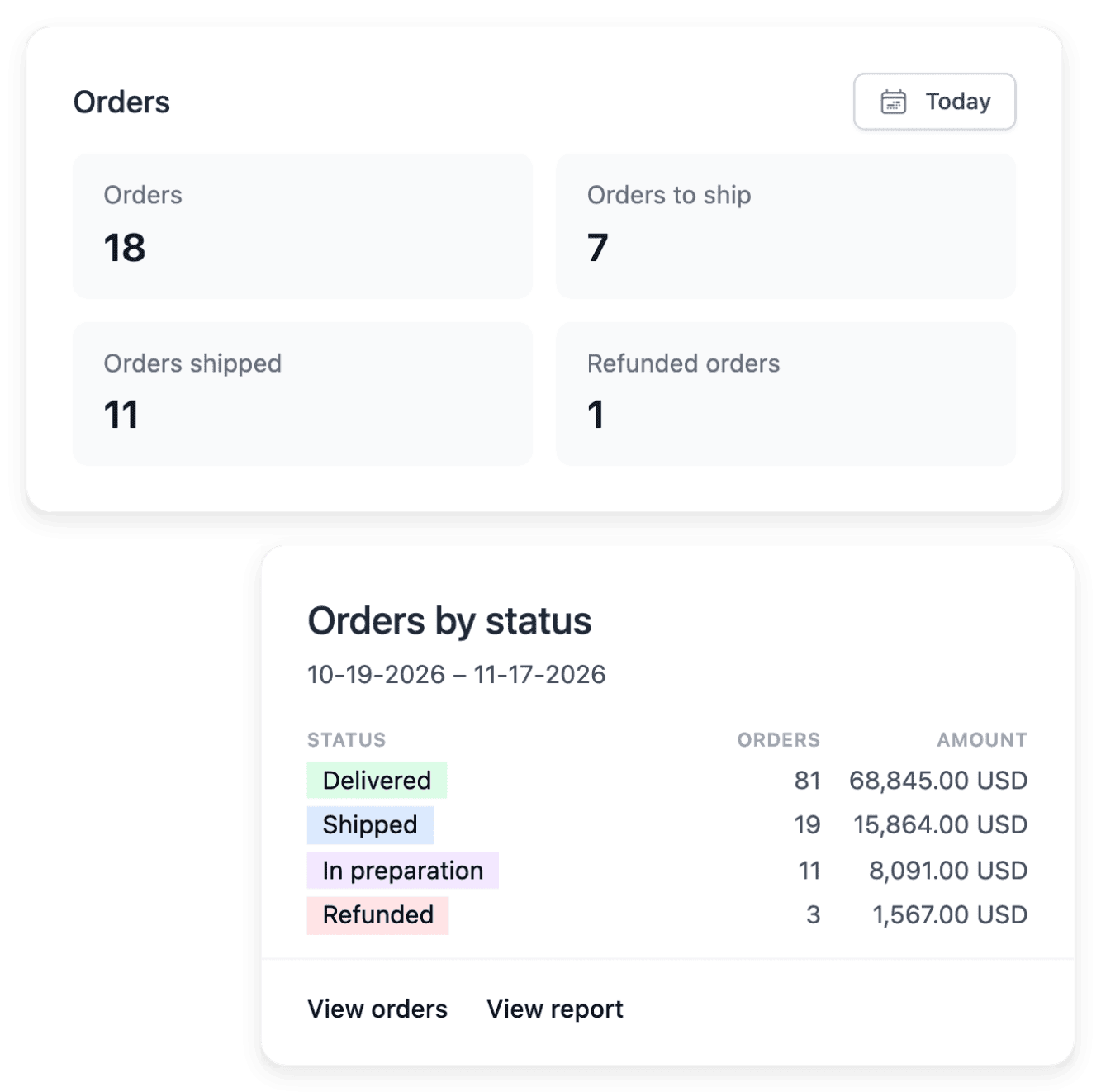
The order book holds the sales made online and the orders you enter by hand, each with its current progress. Open an order to read its customer, items, totals, payments and shipments, with the history that explains how it advanced. The actions offered are the ones that fit the order’s current state.
An order, its payments and its shipments each keep their own state, shown in their own tabs. A payment attempt or an order record alone does not prove a completed settlement, so inspect the payment information before you move the order forward.
The capabilities behind it
An example shop: Allo Allo
- 58 country versions
Each with its own address, its languages and the currency set for the country.
- 30 interface languages
Language versions of the shop interface. Its legal policies are not all translated.
- 1,525 product pages
Product pages listed in the sitemap of one country version of the shop.
Measured on the public shop.
Go further
Prepare your shop, then put it online when it is ready
Tell us about your business: accounts are opened after a review, and our team replies by email.
Questions
Yes. You prepare your pages, your catalogue and your settings in your workspace, then publish when you are ready. Publication shows whether the shop is preparing, online or offline, and you can take it offline again without losing its content.
A domain you already own: the shop connects an existing domain, it does not buy one. You declare it in Publication, make the DNS changes in your domain provider’s account with the instructions shown, then run a verification that reads the current result. A shop serves one final personal address at a time.
You can import the supported catalogue data from a file: the import applies a spreadsheet and reports the lines created, updated, unchanged and refused, and you check that report after each run. Pages and visual style are prepared in the shop’s own builder tools. In your application, you can say that you want to move an existing shop to Ultineo.
Yes. You choose the countries your shop sells into, and Publication maintains its active selling countries. Adding a country does not configure every delivery or payment requirement: prepare both for the market before accepting its orders.
You apply to open your shop: accounts are opened after a review, and there is no self-service registration. Describe your business and check the conditions listed on the application page; our team reviews each application and replies by email.