Create a key and decide what it may reach
A program calls the API of Ultineo E-commerce with a key that belongs to one shop. An administrator of the project creates it in the workspace and chooses, once, what it may reach and when it expires.
What to have before you create a key
- An open shop
A key is created inside the project of the shop, so you need an open shop first. A key whose shop is no longer active is refused.
- An administrator of the project
Creating, editing and deleting keys is reserved to the administrators of the project. Another member opens the tab and reads the list, but has no button to create a key or to open its detail.
- The resources you will call
Each resource has one read scope and one write scope: a GET needs the read scope, a POST the write scope. In the workspace, "Read" and "Write" each grant only themselves, so a key set to "Write" cannot read.
From the API Access tab to a working key
-
1
Open the API Access tab Open your project in the workspace, then the "API Access" tab, and click "Create an API key". Enter a name that tells your keys apart, up to 200 characters.
-
2
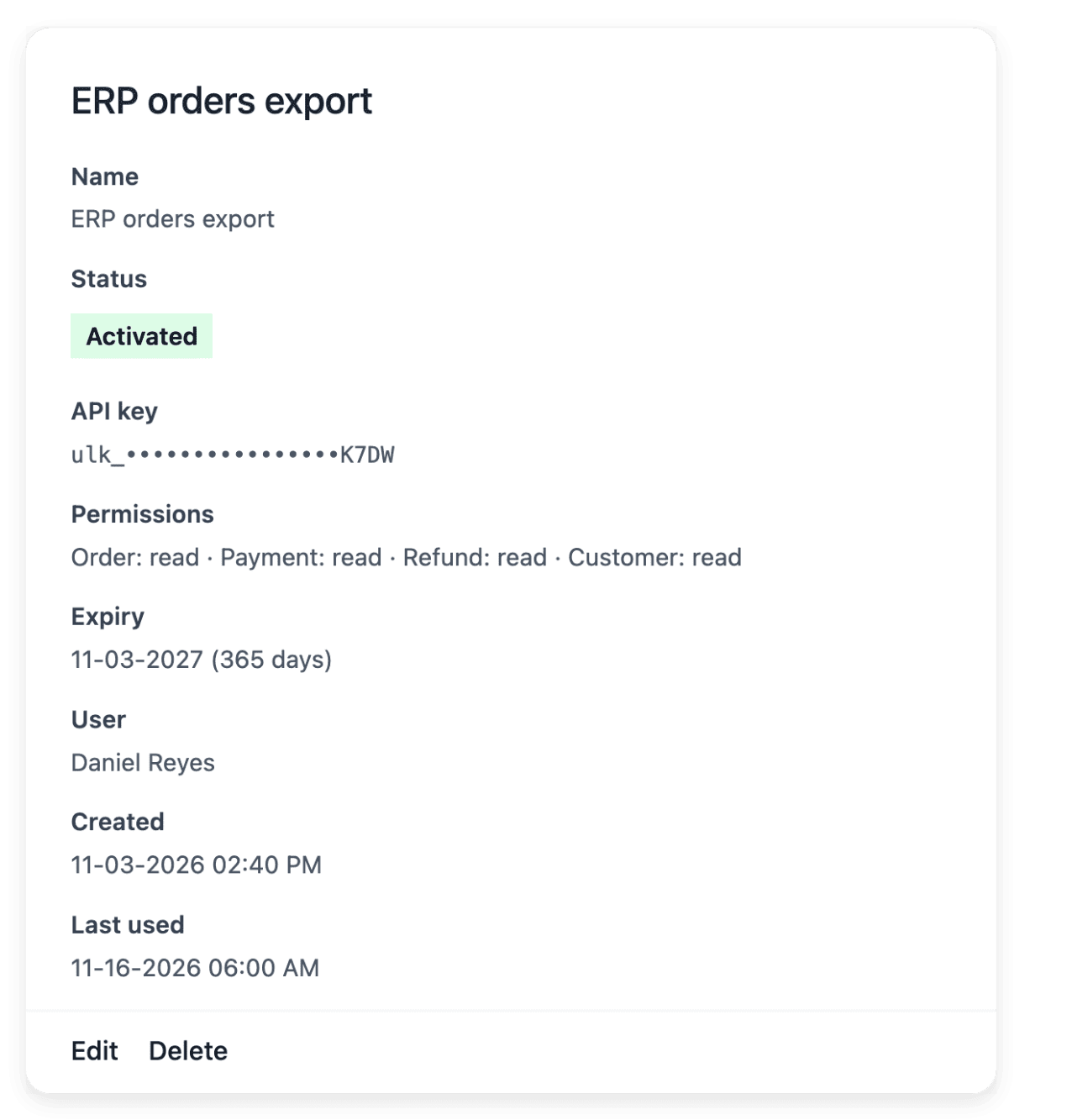
Choose the access Choose "Full access" or "Restricted access". Full access grants every route, now and in the future; restricted access grants only what you pick for each resource: "No access", "Read", "Read and write" or "Write".
-
3
Choose the expiry Choose "30 days", "90 days", "365 days" or "Never expires". Access, permissions and expiry are chosen once: to widen, narrow or extend a key, create a new one and delete the old one.
-
4
Copy the key once After creation, the list shows the new key at the top with its full value. Copy it then: once you leave or reload the list, only a preview of its last four characters remains.
-
5
Send it on every call Each call presents the key in its Authorization header. It belongs to one shop: every read and every write is limited to that shop, whatever you put in the URL or the body.
-
6
Rename, disable or delete Click "Detail" on the row of a key to change its name or its status. Disabling blocks every call that uses the key until you set it back to active; deleting is permanent.
The answer to a call without its scope
This is the refusal the reference publishes for a call whose key lacks a scope, here order:write. The key must hold the scope named, the same resource followed by :*, or *.
Refusal
{
  "code": 403,
  "title": "Forbidden",
  "response": "The API key is missing the required scope: order:write"
}
The status is 403, and the message in response names the scope the key does not hold.
What goes wrong with a key
- A lost key value
The full value of a key is shown once and nothing brings it back. If you lose it, delete the key and create another.
- An expiry that passes unnoticed
Reaching its expiry does not change the status of a key: the row still reads "Activated", with "(Expired)" beside the date, and its calls are refused all the same. Watch the "Expiry" column and create the replacement key before the date.
- A call missing its scope
A call that is short of its scope is refused with 403 and a message naming the missing scope. Call with a key that holds this scope, or stop calling that endpoint.
The articles behind this page
This page restates the following articles of the help center. They hold every field, every value and every answer.
Product pages to read next
- API access
Connect your systems through scoped shop access
- Shop workspace
Start each shop task in the right workspace
- Integrations
Connect supported shop services
Continue in this section
- Make your first API call
The address, the health check, the key in the header and how to read the answer of a first call.
- Import in batches
The contract every import shares: batches, the dry run, replays without duplicates and the report.
- Handle errors and limits
What each status of the API asks of your client, and what you can safely send again.
- Connect an ERP or a supplier feed
A typical connection from another system: the keys to map, a first dry run, the sync and its checks.
- Move an existing shop
Bring your catalogue, your sales history and your domain to a new shop, and check each step.
- AI inside your software
A reasoning step added to a screen of your own software, launched through the API and read back.
A key starts with an open shop
Send your application to open a shop with Ultineo E-commerce: accounts are opened after a review, and our team replies by e-mail.
Questions
A scope names a resource and an action: product:read or product:write, for example. A key may also hold product:*, which grants both actions on that resource, or *, which grants everything. In the list of your keys, a restricted key shows one permission per line, written the way the API reads it. Vouchers use the promotion scopes, although their path is /v1/voucher/import.
A call without a key, or with an expired key, answers 401; an unknown or disabled key, or one whose shop is no longer active, answers 403; a key that lacks a scope answers 403 with the scope named. The guide "Handle errors and limits" gives the message of each refusal and what to do.
No. A key belongs to one shop, and a record of another shop answers 404, exactly as a record that does not exist. A request that names a project other than the shop of the key is refused with 403: remove the project field, since the key already designates your shop.
Grant only the permissions the integration needs, and set an expiry so that a leaked key stops working on its own. Prefer a duration you can plan a rotation around: a key that never expires can only be retired by deleting it. Keep the key within the system that needs the connection, and always call the https:// address, because a single plaintext request discloses the key in full.