Solutions · Open an online shop
Keep a growing catalogue consistent
Ultineo E-commerce keeps the terms of your catalogue in one place: brands, characteristics, groups and condition descriptions are defined once, then selected on each product. Each version keeps its own price and stock, and bulk changes go through a file with a report for every line.
What gets harder as the range grows
- One vocabulary for the range
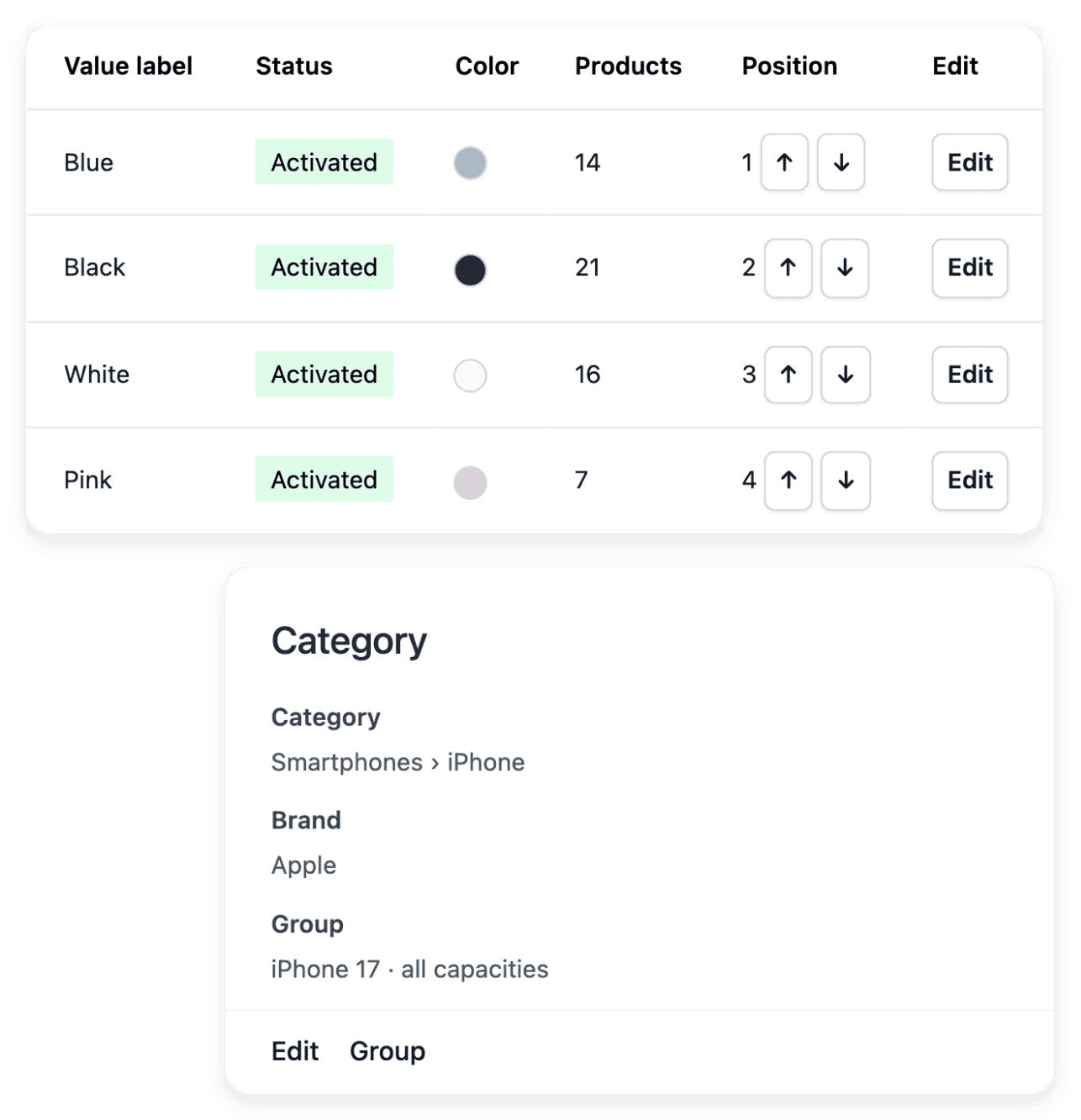
A catalogue filled in by several people ends up with several spellings of the same color, capacity or brand. You maintain a curated set of accepted values instead of inconsistent free text, and each brand’s name and logo once, then attach them to the right products.
- Versions that stay distinct
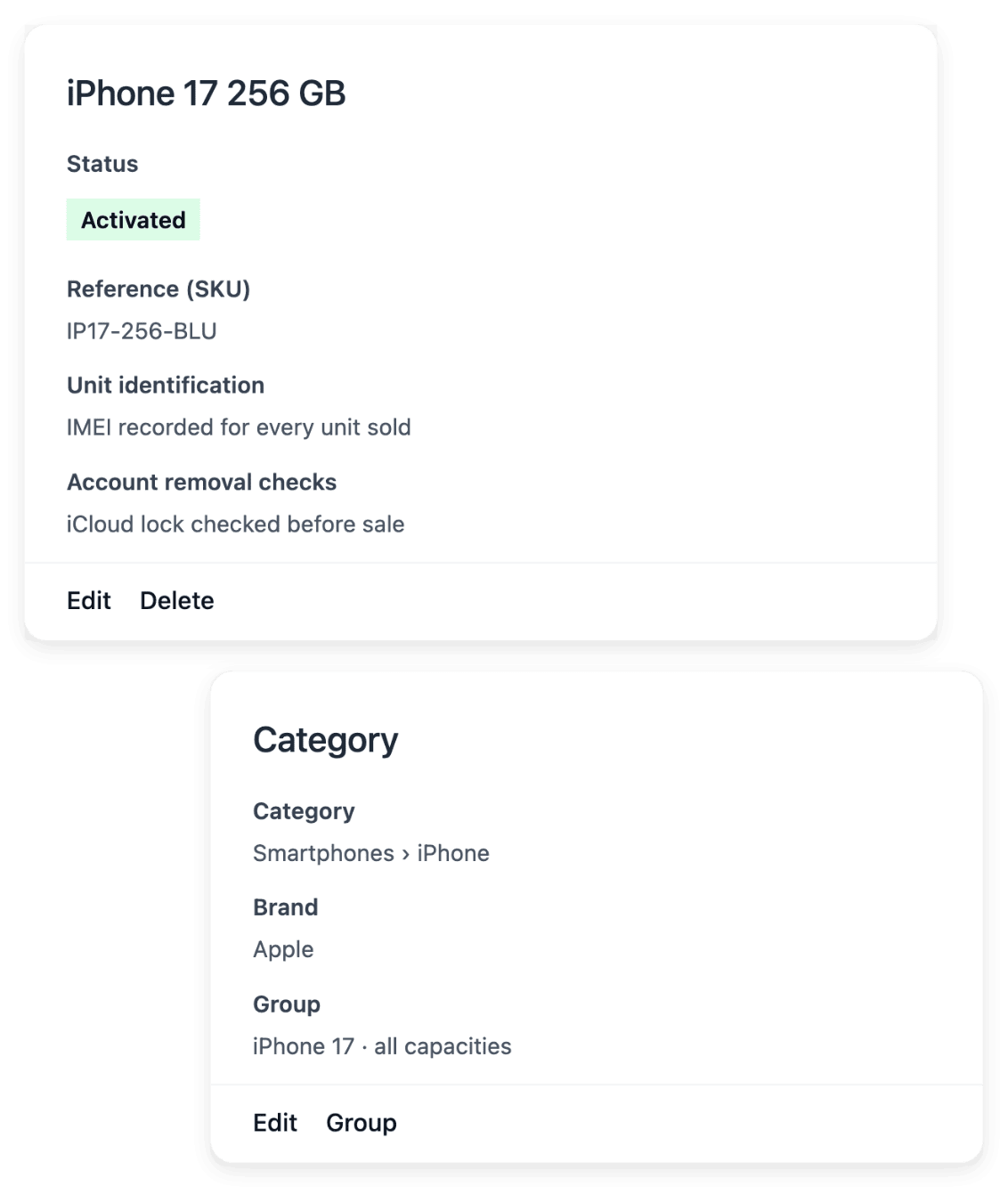
The same item in several capacities, colors or conditions is still several offers to price and to count. A product group presents them as one choice, and each version keeps its own reference, price and available stock.
- Bulk changes you can verify
Changing many records one at a time is slow, and a mistake in a bulk update is hard to see afterwards. You prepare the changes of several products in a spreadsheet, then read what was created, updated, left unchanged or refused during import.
Put a growing catalogue in order
-
1
Define the shared terms Start with the settings overview, which shows the families of information and their usage counts, and open the directory of the term to maintain. Choose consistent names and useful explanations before assigning them widely.
-
2
Group the versions Select the definitions on the product records they describe, then add the existing products to a group rather than recreating their records. Choose the axes that distinguish them, a characteristic or the condition grade, and put those axes in order.
-
3
Apply changes by file Review the required columns and the intended references, then apply the file. Read the row results and the refused-line details, and correct the source rather than assuming the whole file took effect.
-
4
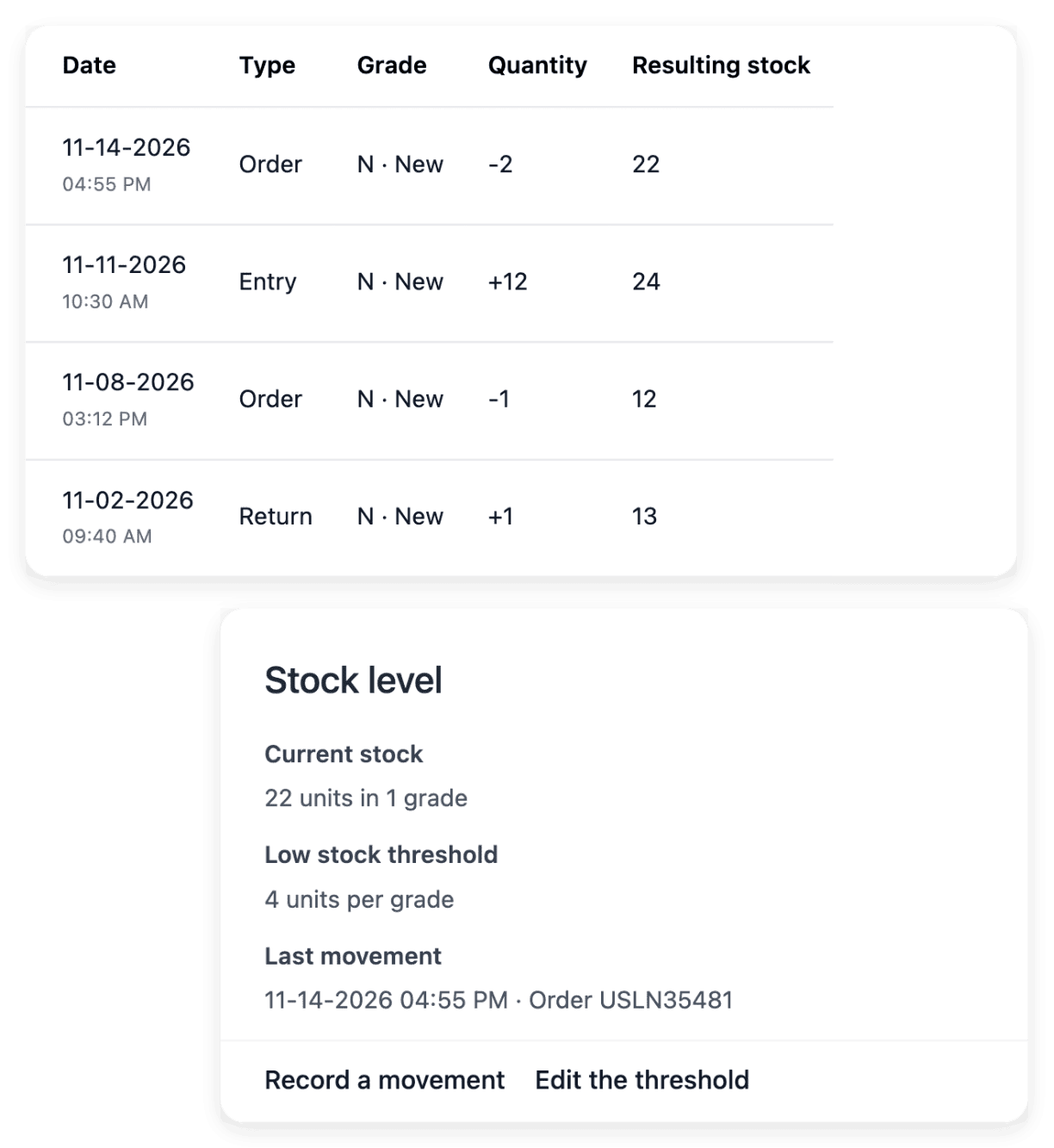
Check stock and its movements On the Stock tab of a product, inspect the recorded entries, exits and adjustments to see how a balance changed. Changes applied by file belong in that history too, so bulk catalogue work does not leave an unexplained new balance.
Define each term once, reuse it across products
Catalogue settings gather the vocabulary your team selects while preparing products: brands, characteristics, accepted values, condition descriptions, product groups and warranties. A characteristic keeps its unit in its definition and its values in a shared vocabulary, and a value may carry explanatory wording and a link to an existing shop page. You describe each condition grade in your own words, so that a customer understands what a grade means in your shop.
The shared vocabulary describes products: prices, stock and availability remain product decisions. Before you retire a brand, look at the number of products that use it: removing the entry leaves the product records in place, and you correct their assignment where needed.
Know what remains to sell, in each condition
Follow the quantity of each offer or condition grade alongside its selling price: the same reference can have a like-new offer and a lower-priced offer in a different condition. After a physical count, record an adjustment for the relevant offer, and set a low-stock threshold to flag an item before its quantity becomes a surprise. Quantities can be divided between your shop’s warehouses and moved between them with a recorded transfer.
A correction updates the recorded availability; it does not change the selling price. The stock tools prepare your own replenishment decisions: they do not create supplier purchase orders or accounting valuation.
The capabilities behind it
- Stock & condition grades
Quantities, movements and grades
- Characteristics
Consistent attributes and values
- Groups & variants
Product choices, prices and stock
See what else you can do
- Open an online shop
Build a shop with your look and your catalogue, follow its orders and put it online on your own domain.
- Move an existing shop
Bring your catalogue, your sales history and your domain to a new shop, and check each step.
- Take payments
Connect your payment account, then follow each payment with its order and its recorded state.
Go further
- Ultineo E-commerce
Give your range a catalogue that stays consistent as it grows
Send your application to open your shop: our team reviews it and replies by e-mail.
Questions
No. A group gathers products that already exist: you add the versions you want to present together. An axis is built from one of your characteristics or from the condition grades, and you maintain the selling information of a version on its own product.
No. Category structure has its own workspace, where you build parent categories and subcategories and give each one its image, description and display order. Categories organize the shelves; catalogue settings define the terms used on those shelves. A category record also brings together the products assigned to it, which makes misplaced items easier to spot.
Yes. You export products, categories, brands and groups when you need a file, to review them in a spreadsheet or prepare them further outside the application. The export covers the supported catalogue sets, rather than every order, setting and business record.