Project workspaces
Keep every project in its own working context
Keep the selected project, its configuration and its progress together as you move through Ultineo Studio.
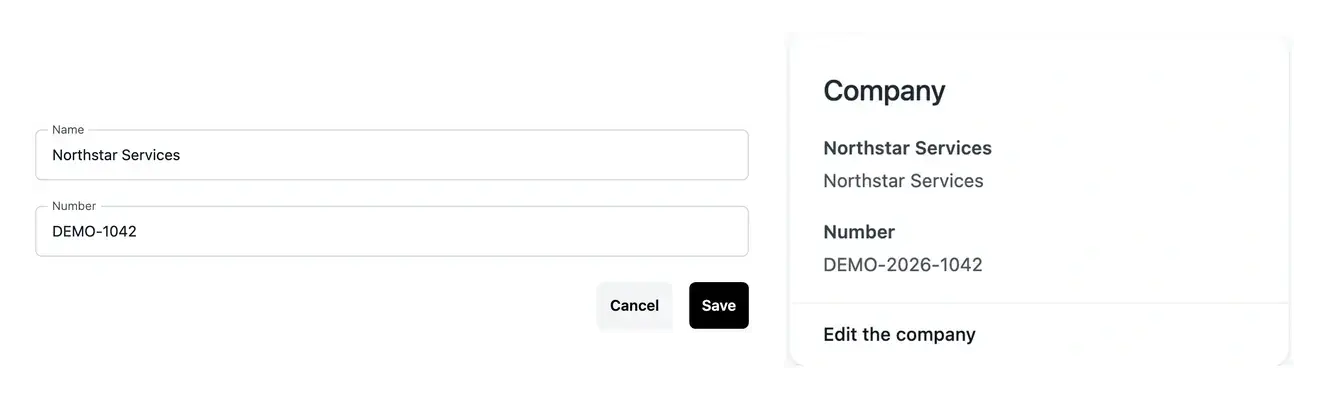
A consistent place for the project’s decisions
- Choose the project
Work in the context of the project selected in your account.
- Find the next step
Open preparation, tasks and project tools from the same workspace.
- Keep context clear
Check the selected project before editing its offer, domains or settings.
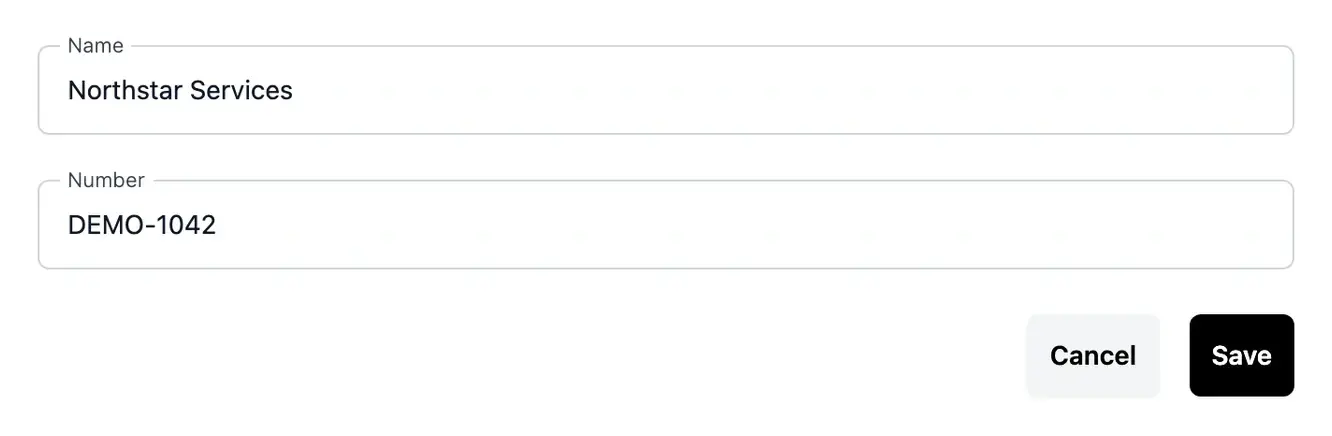
A dedicated context for each project
Your workspace connects the project brief to its business areas, application, hosting and publications. You can move between these tools without losing the project you are working on.
When you work on several projects, confirm the selected name before making a change. The selected project determines which configuration and progress you see.
Work clearly across projects and environments
Follow several applications. When you manage more than one project, selecting the right context determines which scope, requests and services you see. Check the project name before acting. The selection changes the working context while keeping each project’s records separate.
Move from preparation to operation. A project progresses from its brief to functions, pages and releases. Its workspace connects these stages with hosting and settings, so you can find the next action and return to the context behind an earlier decision.
Separate personal and project information. Your personal sign-in information belongs to your account. Company details, application administration access and environment settings belong to the selected project. Keeping these purposes clear helps you maintain the right information in the right place.
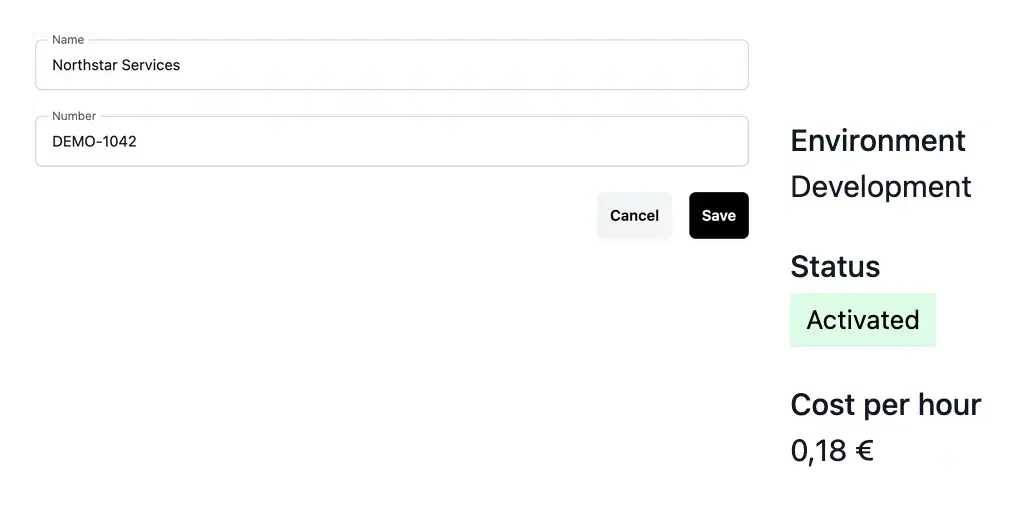
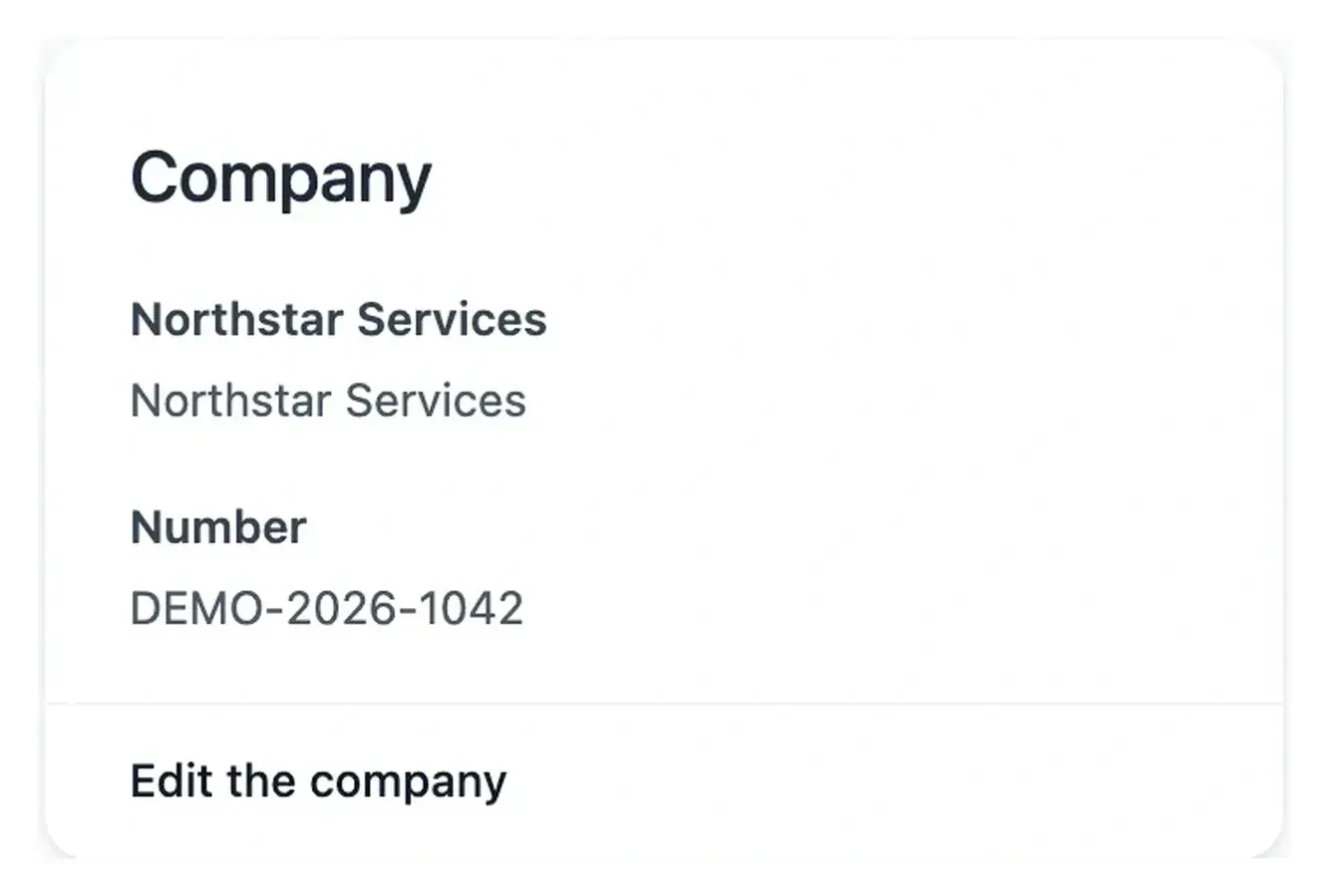
Keep personal and project information understandable
Your personal account and the selected project serve different purposes. Maintain project company information and application access in the corresponding project tools.
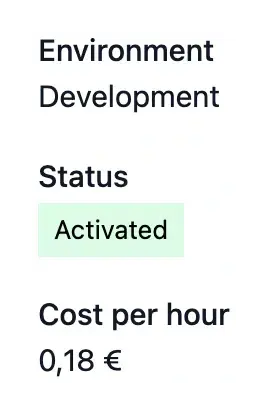
Environment-specific screens also identify development, staging or production. Check both the project and environment when managing operational settings.
Keep each decision attached to the right project
A change request, an offer and an environment belong to a particular project. Checking the selected workspace gives every action the right business context.
When switching projects, start by reading the overview and the environment concerned. This simple check helps you avoid reviewing one project while expecting another project’s configuration.
Use context as a practical check before every action
Select the project. Choose the application you intend to manage before opening its tools. This is the reference for the data and progress displayed.
Choose the environment when needed. Operational screens distinguish development, staging and production. Confirm this second context before editing access, company information or infrastructure.
Find the next useful step. Use preparation and task views to identify what needs attention, then open the related item. Its detail retains the context needed to understand the action.
Give your application a clear place to progress
Organize the project’s preparation, changes and operational decisions around one selected context. This makes it easier to understand what you are editing and where the result belongs.
Questions about Project workspaces
The tools switch to that project’s scope, activity and configuration. Selection does not merge projects. Confirm the name before changing a record, especially when several applications have similar business areas.
The project identifies the application; the environment identifies its installation. Administration accounts and operational settings can differ between development, staging and production. Both choices matter when making a change.
It is where you manage the project’s preparation, build and operation in Ultineo Studio. Your application’s customer journeys and back office are separate services that you inspect and publish through the project tools.
The getting-started view shows the current project step. Tasks brings together actions needing attention once work is underway. An unavailable operational view can reflect incomplete installation rather than missing business data.
Use the selected project’s settings in the intended environment. Personal account information and the application’s company identity have different purposes, so check the context before editing.