Tasks and progress
Know which project action needs your attention
Find what needs your attention, follow work in progress and consult the history of project actions.
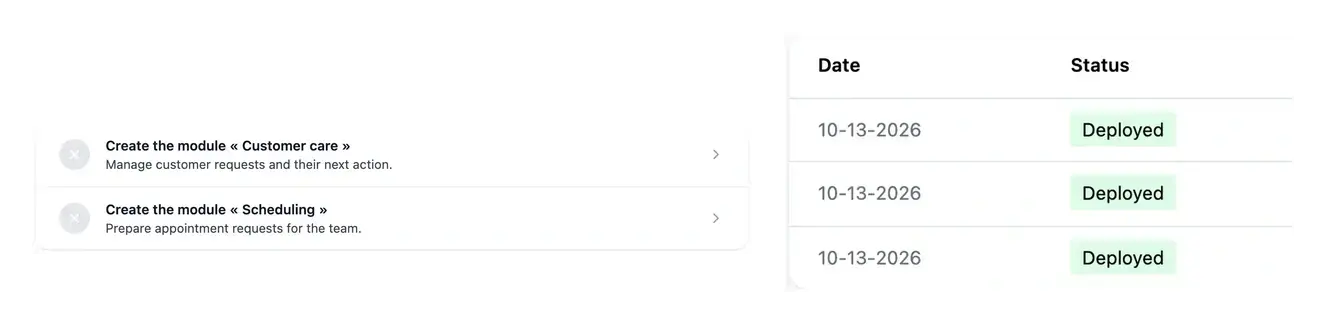
Separate your next action from work already underway
- See the next action
Identify questions, prerequisites and confirmations awaiting you.
- Follow current work
Consult the project work shown as in progress.
- Look back
Use task history to review recorded actions.
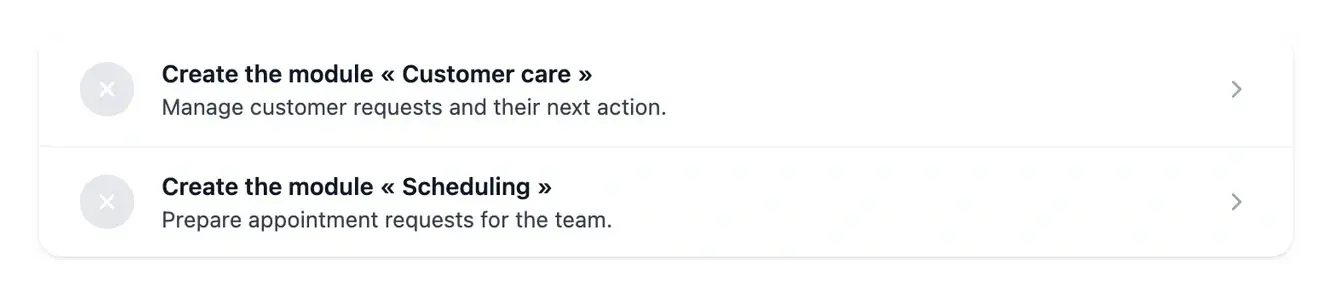
Find the action that moves the project forward
Tasks brings together the project items that need attention. Open the related context instead of searching each section to find an unanswered question or incomplete step.
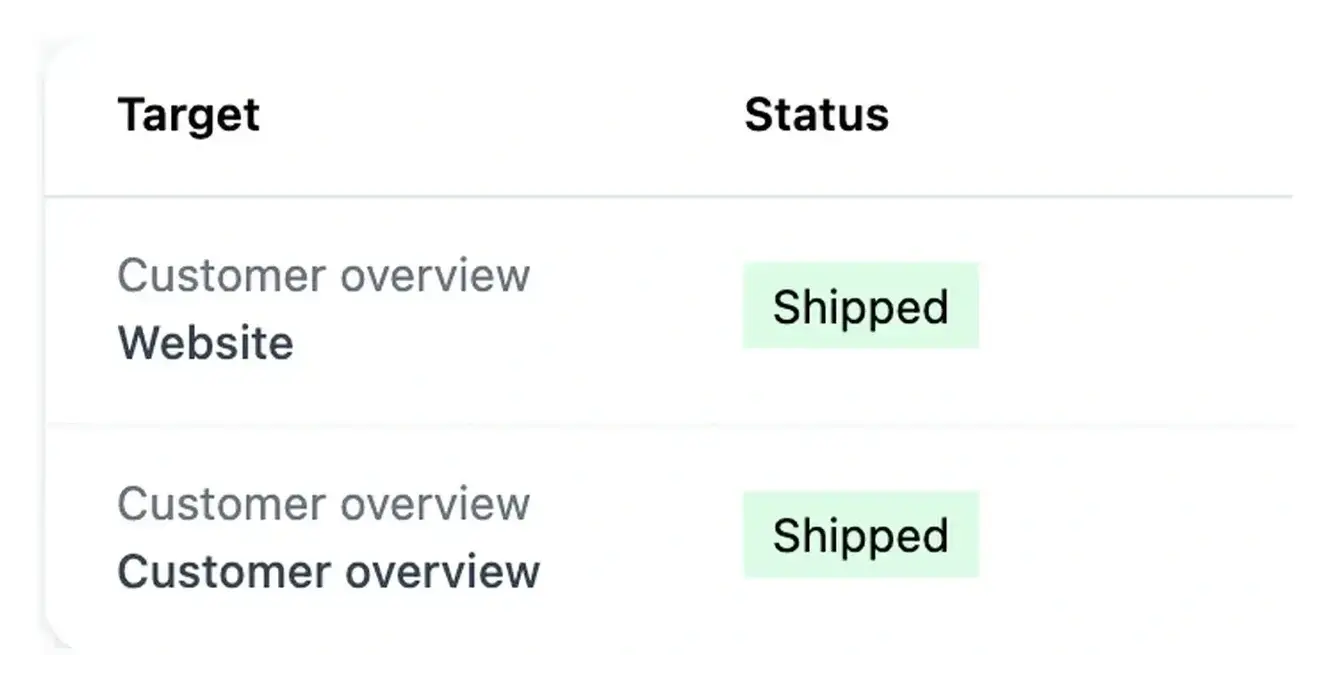
The overview also shows work in progress. Status information helps distinguish something waiting for you from work already being processed.
Find the next useful step without opening every section
Answer a pending requirement. Preparation and construction can raise questions in different parts of the project. The task overview gives you a starting point for finding the item that needs your response, then takes you back to the relevant context.
Understand current activity. An item marked in progress may be processing rather than waiting for you. Open its details to read the state and requested information. This helps avoid a second request for work already underway.
Revisit an earlier decision. History records previous project activity. Use it alongside Studio requests and roadmap details to understand what happened, which item was concerned and what should be checked next.
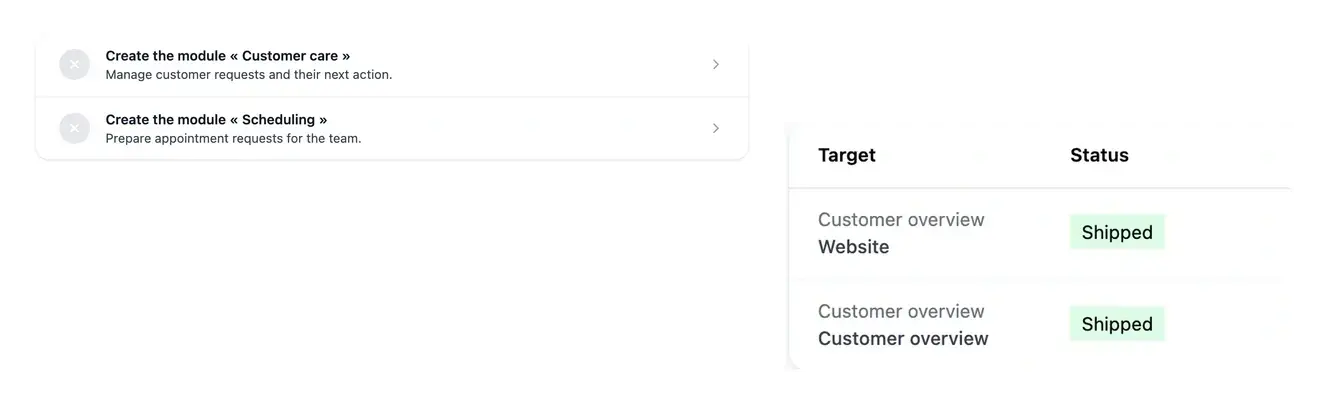
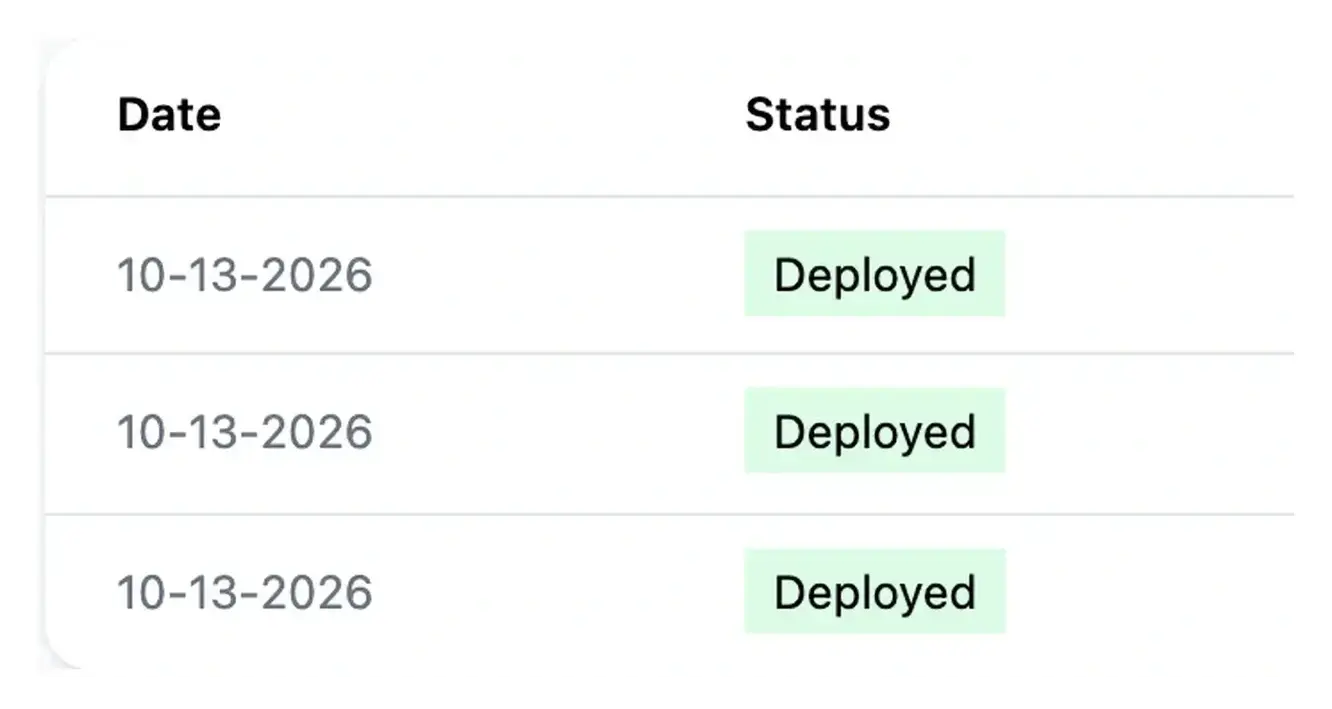
Check the record and then verify the result
History helps you revisit project activity and understand the context of earlier actions. Use it alongside Studio requests and roadmaps.
A task state is one part of the picture. Check the application on development and the selected release in Deployment before concluding that users can see a change.
Distinguish an action waiting for you from ongoing work
An item requiring your input needs a decision or an answer. Work already in progress calls for a different review: read its details and follow the recorded state.
Use the history to understand what was handled and when. This keeps the next action connected to the project’s actual situation instead of relying on a remembered status.
A practical cycle of action and follow-up
Read what is to do. Find the questions, confirmations or prerequisites needing attention. Check their project context before acting.
Complete the related step. Open the item and respond or confirm within its own view. Return to the overview to follow its updated state.
Verify the outcome. Inspect completed work in the application and check its environment version. The task state and the live release describe different stages.
Keep the next project decision visible
Use task and history views to stay oriented, respond in context and follow the result of work already started.
Questions about Tasks and progress
No. It can describe work being processed. Open the detail to distinguish an action waiting for you from progress that should simply be followed.
They return to the relevant project item, such as a clarification or preparation step. Completing the action in that context keeps the response attached to the correct work.
Use task history and the related Studio or roadmap details. The recorded context helps explain a previous action without treating the latest state as the whole history.
Check preparation and infrastructure availability separately. A setup or unavailable-service message should not be interpreted as a complete project with no remaining work.
Verify the application result and the version running in the intended environment. Completion and production publication are separate milestones.