Company and registration settings
Keep the company identity and account policy clear
Maintain the project’s company details and address, and decide whether users can create an account publicly.
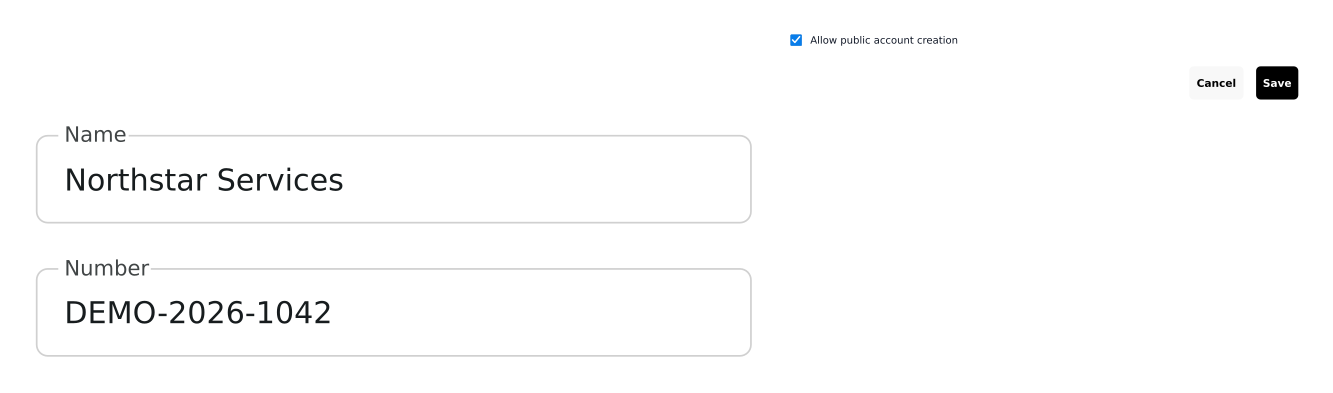
Settings tied to the intended project environment
- Keep company data current
Edit the company name, registration number and address.
- Choose the environment
Review and edit company details for development, staging or production.
- Control account creation
Enable public registration or keep account opening under your control.
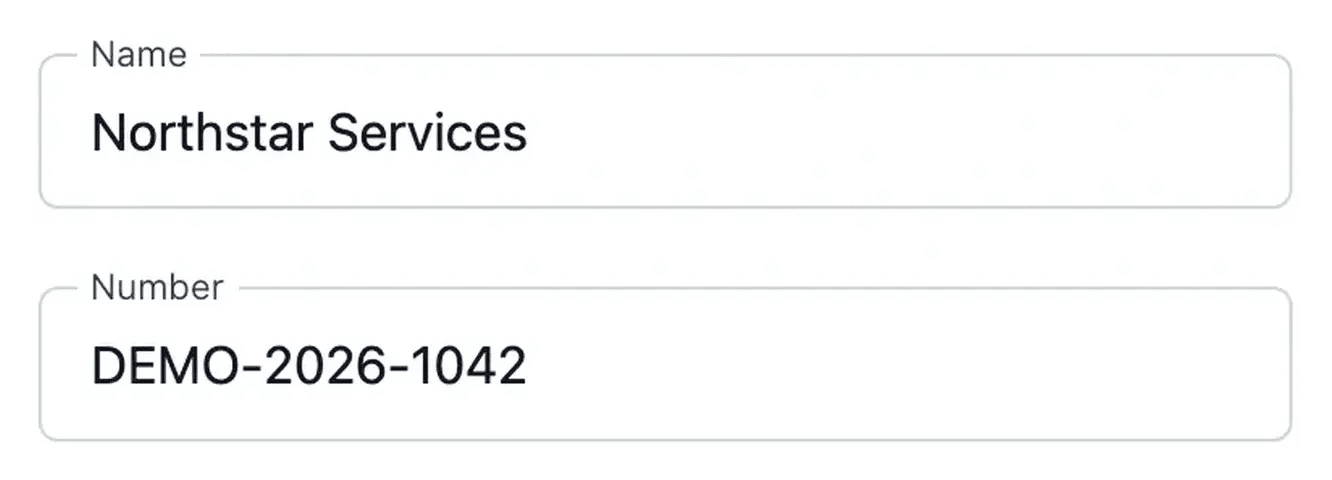
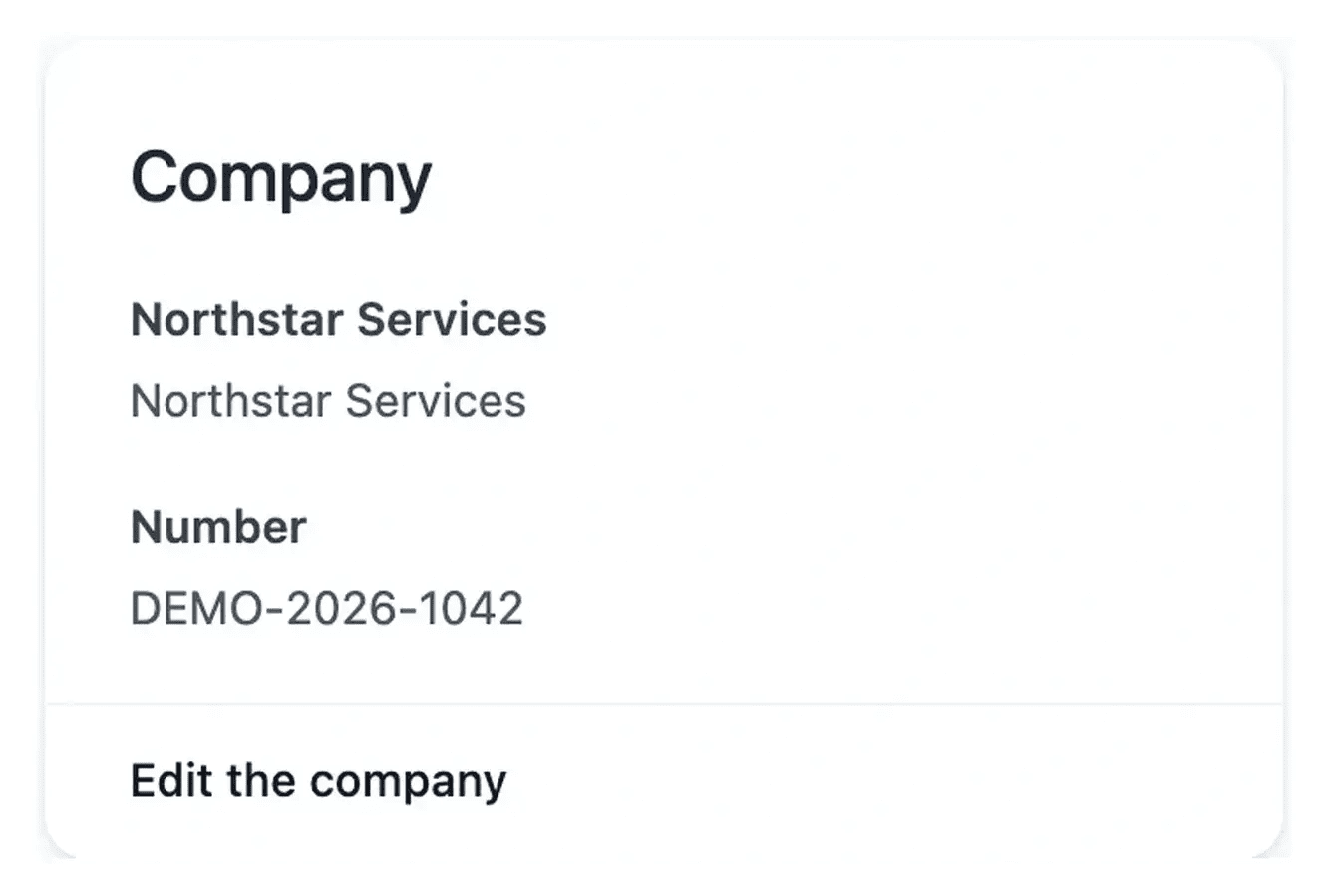
Keep the project identity consistent
The settings overview reads the company and address for the selected environment. Open the corresponding editor to update the information and return to its overview.
Check the environment before saving. Development details should not be mistaken for the company information currently used in production.
Choose how a new customer receives an account
Maintain the application’s company details. Update the company name, number and address, then check the overview in the same environment. These are project information, distinct from the personal sign-in details of your Ultineo Studio account.
Let customers register themselves. When the business process permits open creation, allow public account creation in the Self-registration tab. The choice applies to development, staging and production; check the resulting state and the visitor journey.
Open accounts after a manual review. Some services need to verify customer information before granting an account. Disable public registration for that process, then use the application’s customer-account workflow for approved people. The public page cannot bypass the disabled policy.
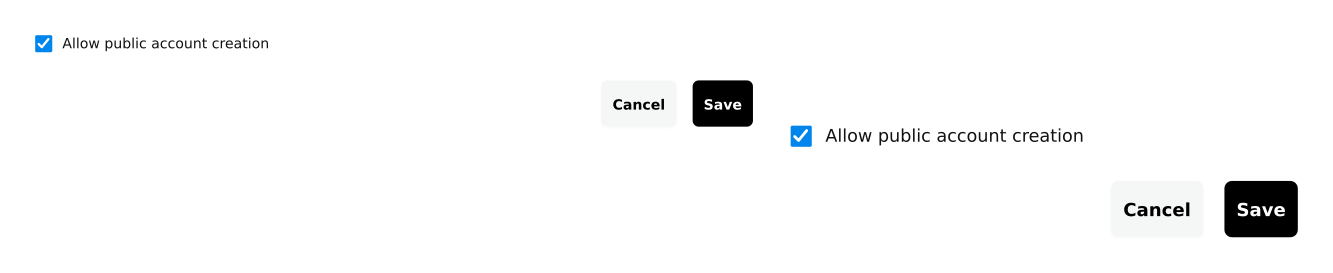
Choose how new customers receive an account
Public registration can be enabled when customers should create their own account. Disable it when your process requires checking customer information and opening accounts manually.
When disabled, the signup link is hidden and the registration page redirects to login. Administration accounts remain managed in the separate access tools.
Choose a registration policy that matches your service
Some services let visitors create an account themselves; others review the customer’s information before opening access manually. The public registration option supports that choice.
Review the company and address information alongside that policy. After changing a setting, check the saved result: company and address per environment, self-registration for the whole project.
From a settings edit to a verified policy
Check project and environment. Choose the environment whose company details should change. Self-registration is one setting for the whole project.
Save the relevant setting. Company, address and public registration have their own editors. Read the confirmation or error before leaving.
Verify the overview and journey. Return to the same environment and review the values. For registration, check the public entry point as well as the policy state.

Adapt account opening to your business process
Keep project identity current and choose whether customers can create accounts themselves or need prior review.
Questions about Company and registration settings
Company and address details are read for the selected environment, so check development, staging or production explicitly. Self-registration is the exception: one project-wide choice applies to development, staging and production.
The editors return to the settings overview with the intended environment. Read the save result and verify the displayed values there.
The signup link is hidden and the registration page redirects to login. Existing accounts and their permissions are managed separately.
Use the customer-account process provided by your own application after the required review. Administration access in Ultineo Studio concerns the back office and is a separate type of account.
Confirm the project and environment, read any save error and reopen the matching overview. A different environment or an unavailable service can explain an apparent mismatch.