Administration access
Give the right people access to the back office
Manage the accounts that can sign in to your application’s back office, in the selected environment.
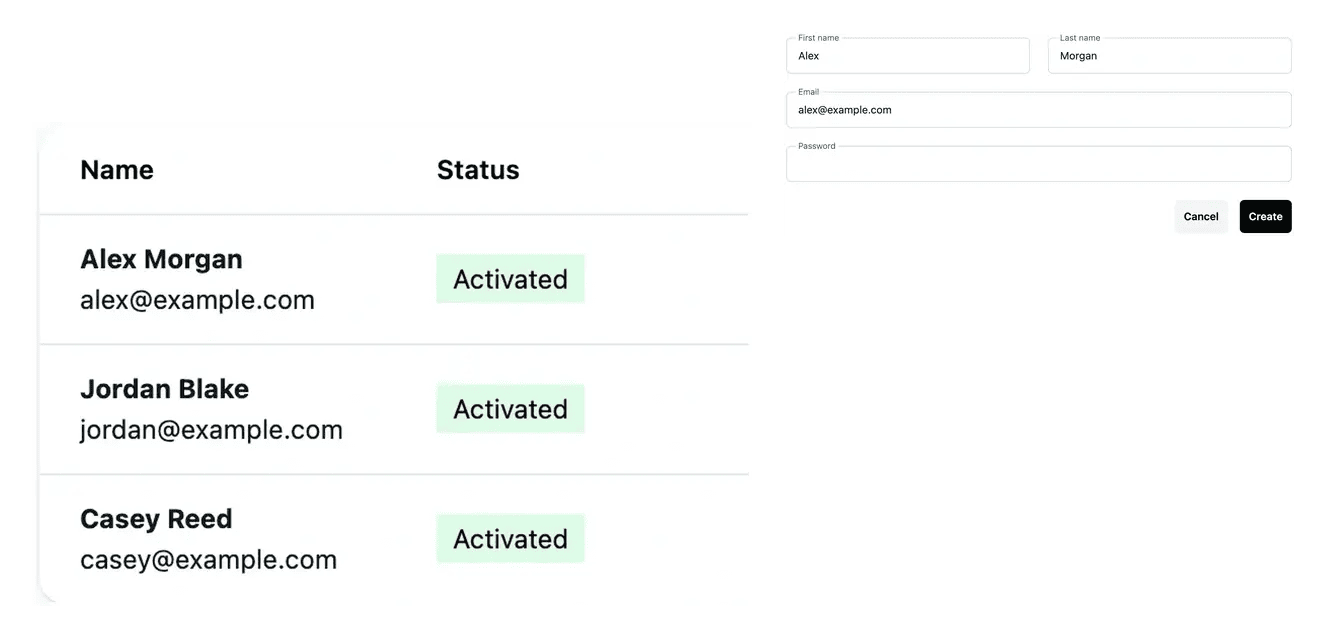
Accounts maintained in the correct environment
- Choose the environment
Inspect development, staging or production accounts explicitly.
- Create an access
Add the administration account needed for the project.
- Maintain or revoke it
Update a password or remove access through the corresponding controls.
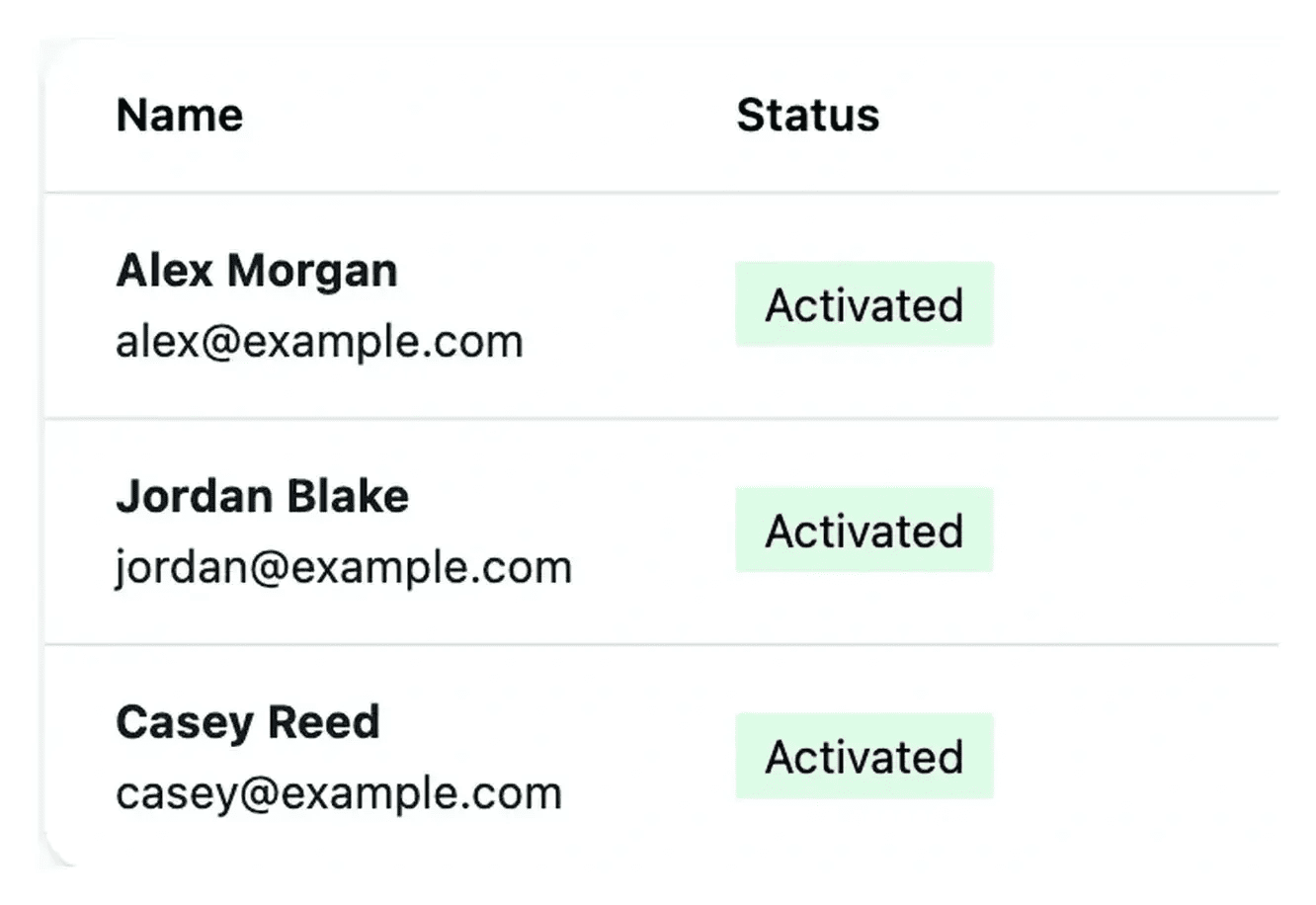
Give administrators the access they need
The access list concerns the project’s administration application. Create an account for a person who needs to use that back office and review the current accounts periodically.
Use the account controls to change a password or remove access when it is no longer needed. Confirm the account concerned before completing the action.
Keep administration access separate from customer registration
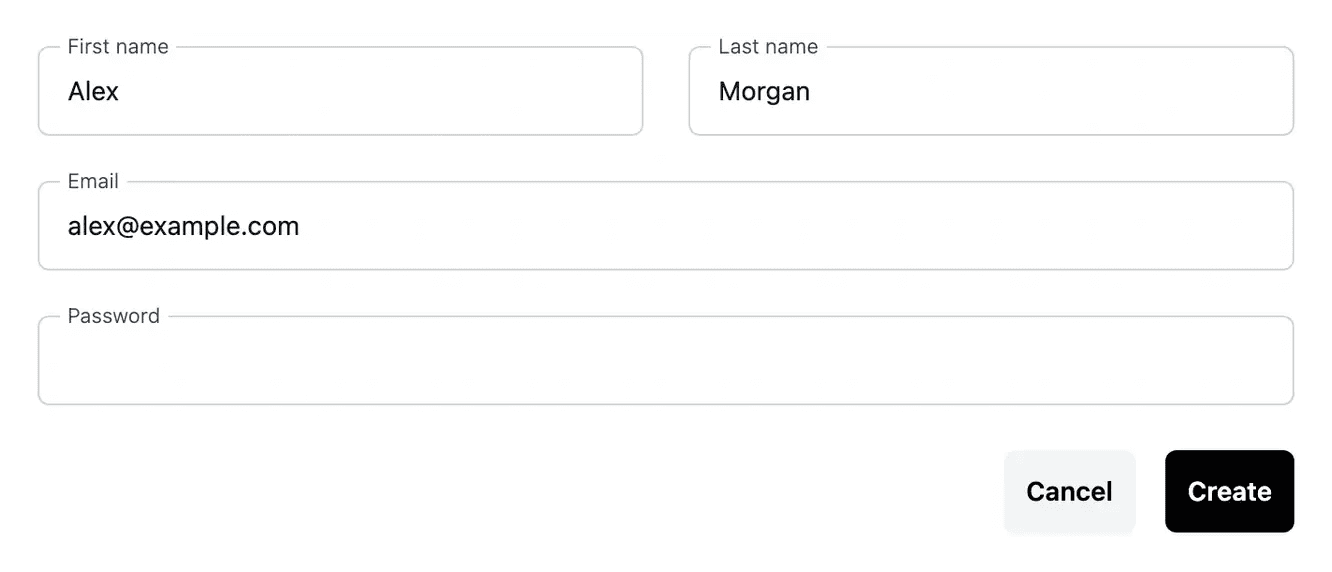
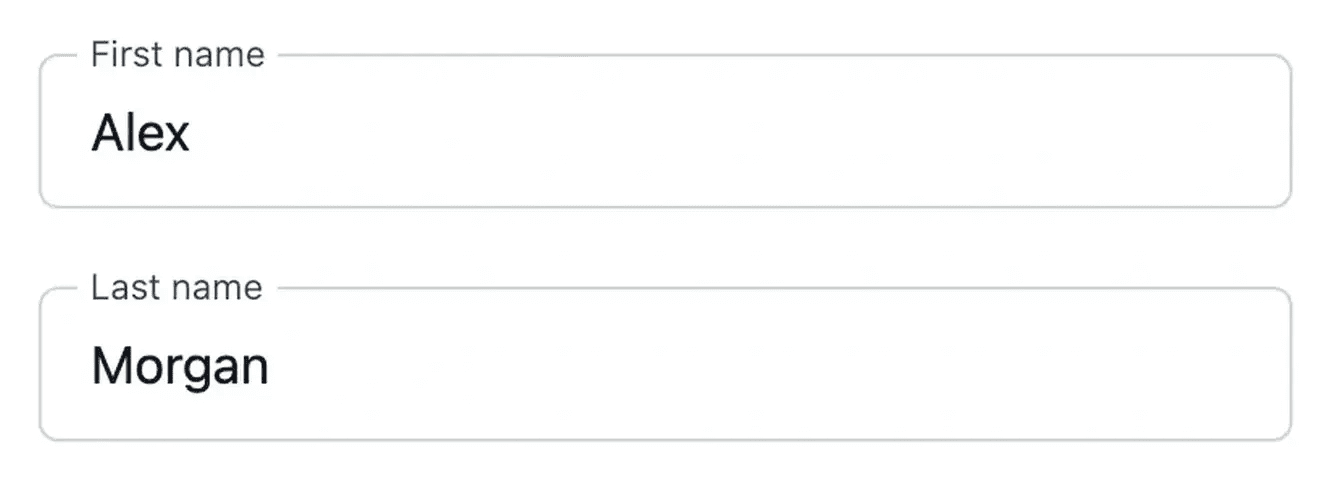
Create an administration account. Enter the person’s name, email and password for the selected environment. The first access becomes the owner; subsequent accesses are members. Check the resulting list so the account belongs to the installation the person needs.
Maintain an existing sign-in. Use the password reset action for the account concerned, with matching entries and the required length. Keep the project and environment explicit instead of changing a similarly named account elsewhere.
Withdraw an ordinary access. Review the identity and environment on the confirmation screen before removal. The project owner and protected test accounts do not have the same ordinary removal actions, which keeps their special role visible.
Keep environment-specific accounts clear
Development, staging and production maintain their own administration accounts. An account in one environment does not prove the same access exists in another.
Use the environment selector and check it before creating, updating or revoking an account. Project customer registration is a separate setting.
Check access in the environment where it is needed
An administration account is managed for the selected environment. Start by confirming that destination before creating an account or changing its access.
After the action, review the account in the list and use the intended administration address. Treat access management as part of the environment’s operation and keep it distinct from public registration policy.
From account creation to ongoing access maintenance
Select the environment. Review the administration list for development, staging or production and confirm the account context.
Create or maintain the account. Use the offered creation and password controls, then check the recorded result in the same environment.
Review access over time. Inspect account states and sign-in information. Remove an ordinary access when it is no longer needed, subject to its protected role.
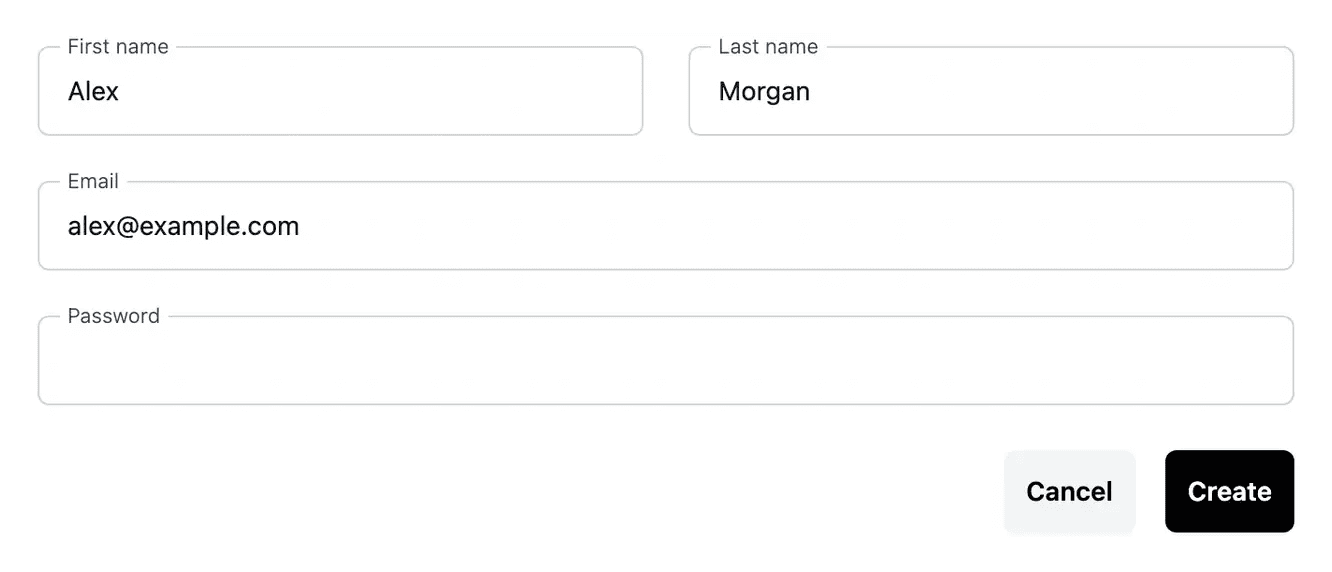
Keep administration access deliberate and understandable
Manage the person, account and environment together, while preserving the distinction from your application’s customer accounts.
Questions about Administration access
Each environment has its own accounts. A development access does not automatically create the same production login. Check the selected environment before every account action.
It becomes the environment’s owner. Subsequent accesses are members. The owner is protected from removal through the ordinary access-deletion screen.
Use the password action for the account in the correct environment. The entries must match and meet the displayed requirement before the new value is accepted.
The owner and protected test accounts do not offer ordinary deletion in the same way as a regular access. Read the available action and confirmation rather than assuming all rows are interchangeable.
Administration access is for the back office. Public customer creation is controlled through project settings and the customer-account tools of your application.