Countries, languages & currencies
Add a country in one click
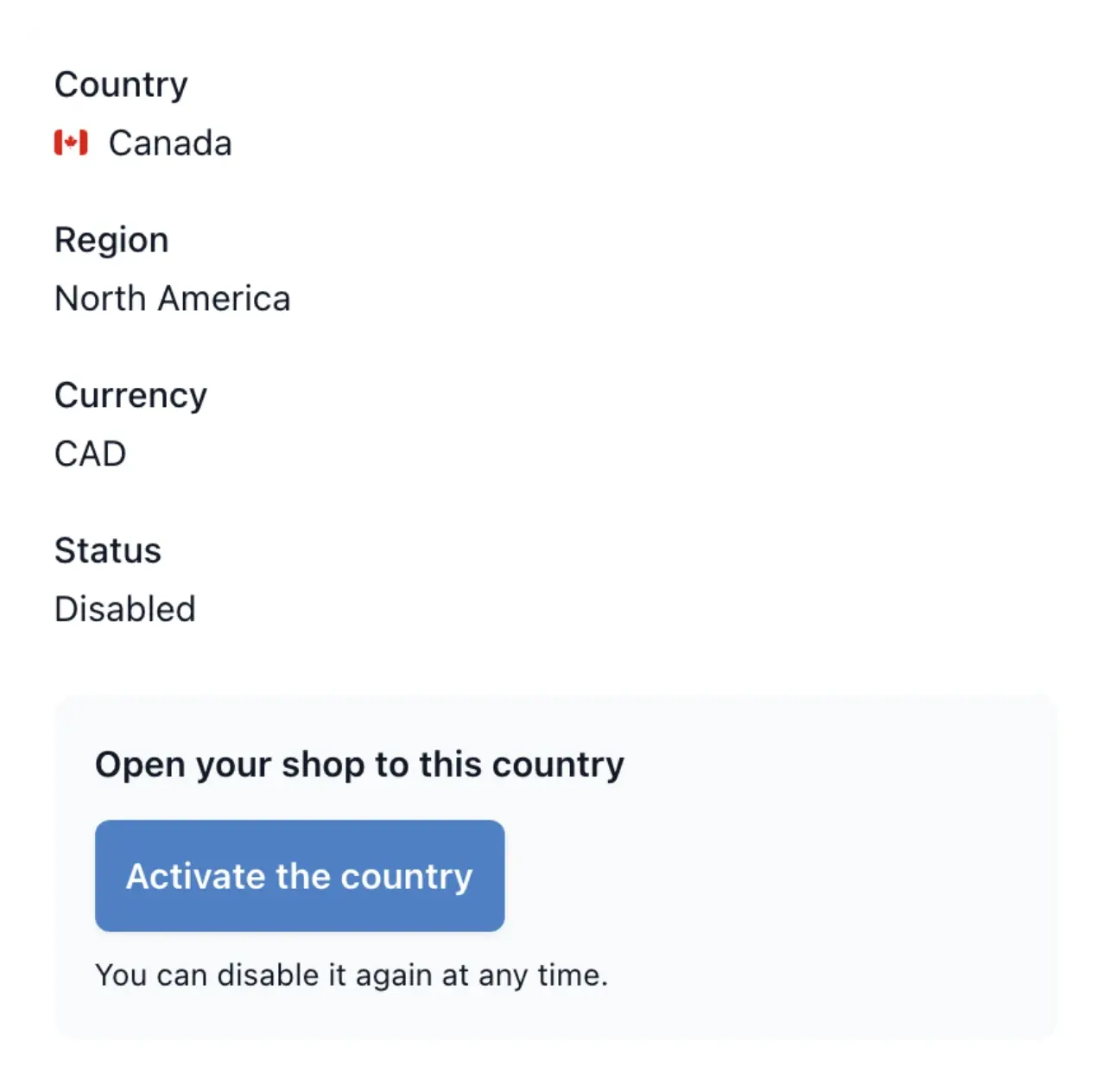
Choose a country, then activate it for your shop in one click. There is no limit on the number of countries you can add, provided you can deliver there.
Prepare your shop for new markets
- Selling markets
Choose which country versions of your shop are open for business.
- Translated catalogue
Maintain product translations for your selected languages.
- Local presentation
Use the country and language selectors and supported currency conversion on the storefront.
Choose the country, then click Activate
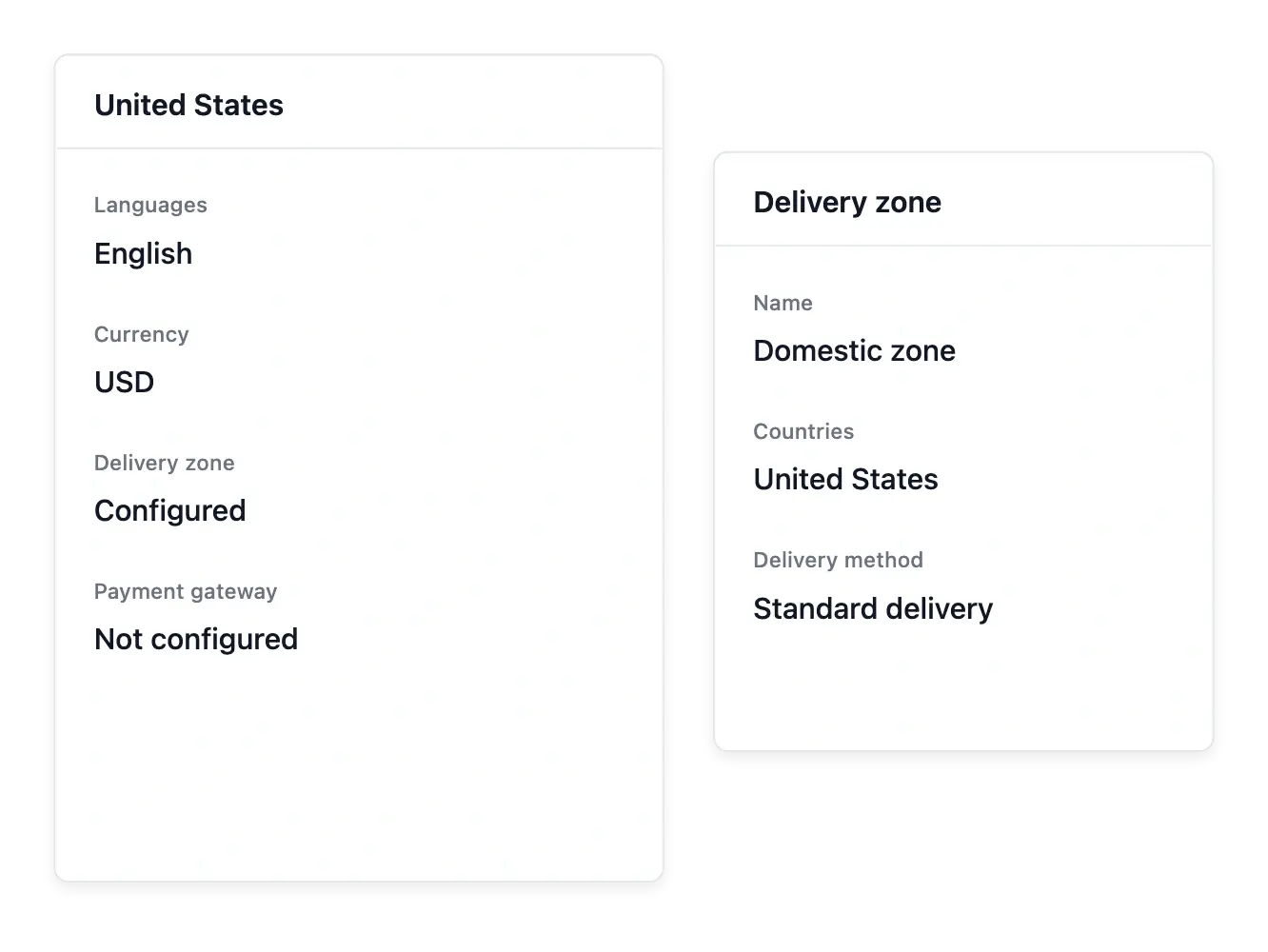
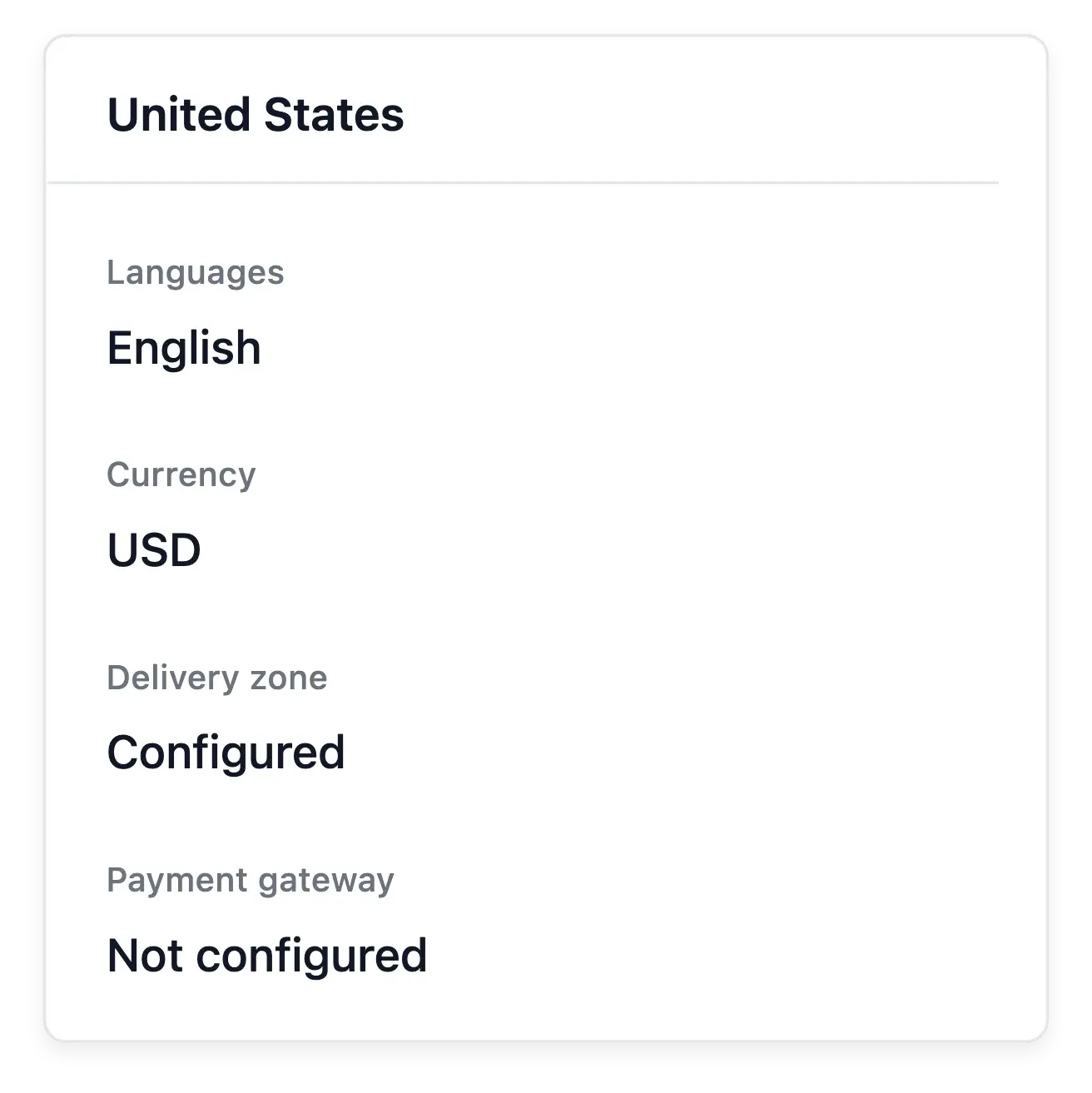
Open Publication, choose Countries and find the destination you want to serve. Select Activate, review the country recap and confirm with the Activate button. The directory also shows the country’s languages, currency, delivery coverage and payment readiness.
Add as many countries as you can deliver to: there is no country-count limit or extra activation fee. Prepare delivery zones, rates, payment methods and relevant content for each destination. Activating the country does not create missing operational settings. Metered services keep their separate usage costs.
Prepare each market as a complete experience
Countries served. Choose the countries available through publication settings. Market availability remains under the shop owner’s control.
Language coverage. Review translated product and help content for the languages your shop serves. Country selection and complete translation are different checks.
Delivery and local presentation. Inspect country coverage and the configured delivery methods. Review the visitor’s buying experience rather than assuming one setup suits every destination.
Keep the buying journey coherent abroad
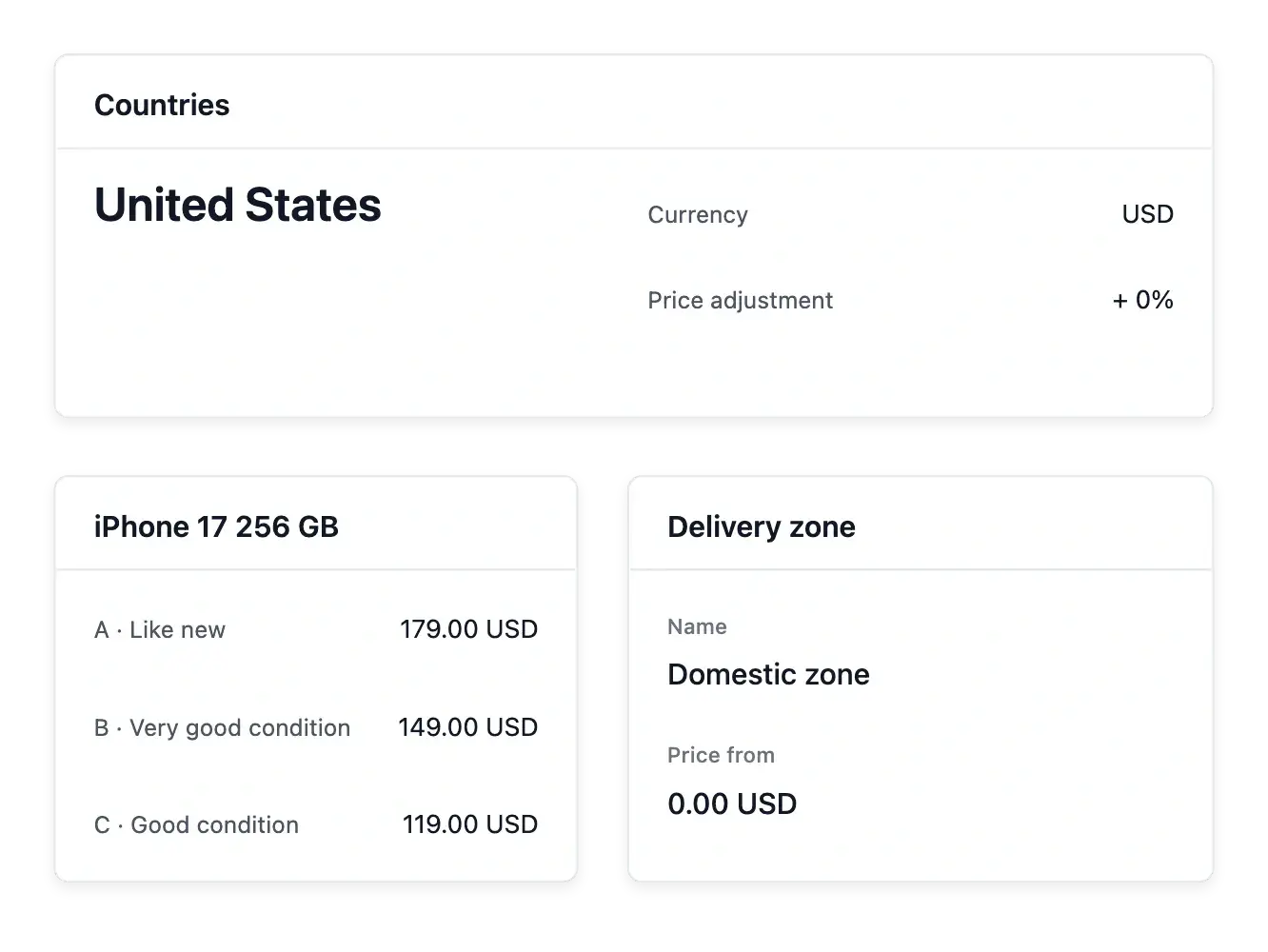
Country and language selectors let shoppers use the supported local presentation. Currency conversion changes how prices are displayed; the country price adjustment lets you add a percentage to catalogue prices for a particular market.
Before opening a country, review its product wording, delivery zones, methods and payment configuration. These tools help you prepare expansion; they do not arrange your international transport or settle customs obligations for you.
Add a country with its content and delivery
Choose the destination. Prepare the intended country in Publication and review the shop content relevant to those customers.
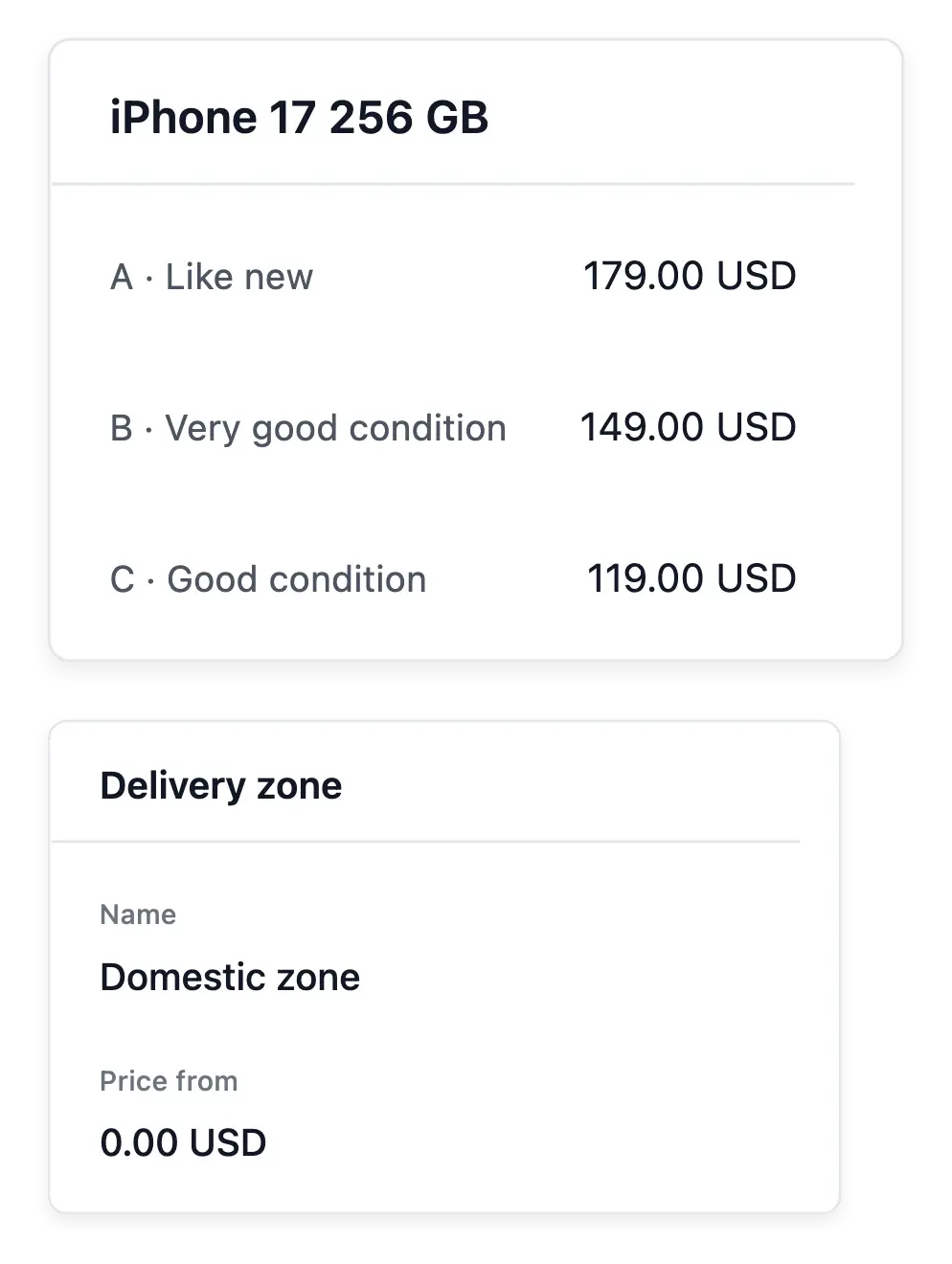
Check operational coverage. Confirm the delivery zone, rates and applicable payment setup. The country entry does not create missing provider configuration.
Review the local buying path. Inspect product wording, prices as presented and checkout choices for the destination. Keep feed publication aligned if an external channel serves that market.
Give your shop room to grow internationally
Build the catalogue, local presentation and delivery setup your next market needs.
Questions about Countries, languages & currencies
Yes. Publication lets you activate or disable countries for your own shop, independently of the country where you opened your Ultineo account.
No. The country screen reports coverage. Configure delivery zones and methods in delivery settings before accepting orders there.
Do not assume that. Review language coverage and missing or outdated texts; launch the available translation tasks and check their results.
Supported tasks include product names and customized help articles. Available languages follow the countries your shop serves, and the AI service must be ready.
Yes. An active country's settings include a percentage adjustment to catalogue prices, alongside the supported local currency presentation.
No. Add as many supported countries, languages and currencies as you need without a quantity limit or an extra fee for adding them. Delivery, payment-provider and metered service costs remain separate.