Categories
Build shelves that make your range easier to browse
Organize products into categories and subcategories that shoppers can browse easily.
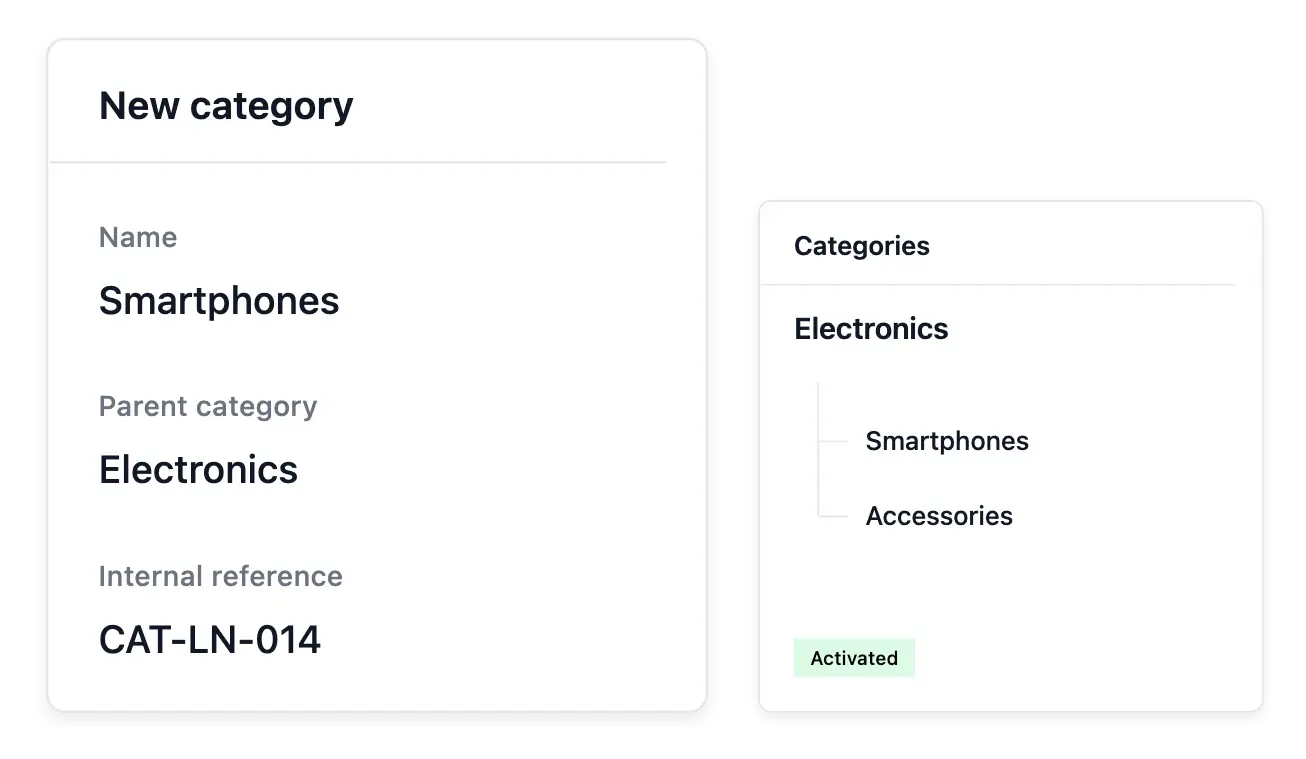
Make your range easier to explore
- Your category tree
Build parent categories and subcategories to suit your catalogue.
- A clear presentation
Give each category its image, description and display order.
- Products in context
Browse its products and subcategories, then publish or hide the category.
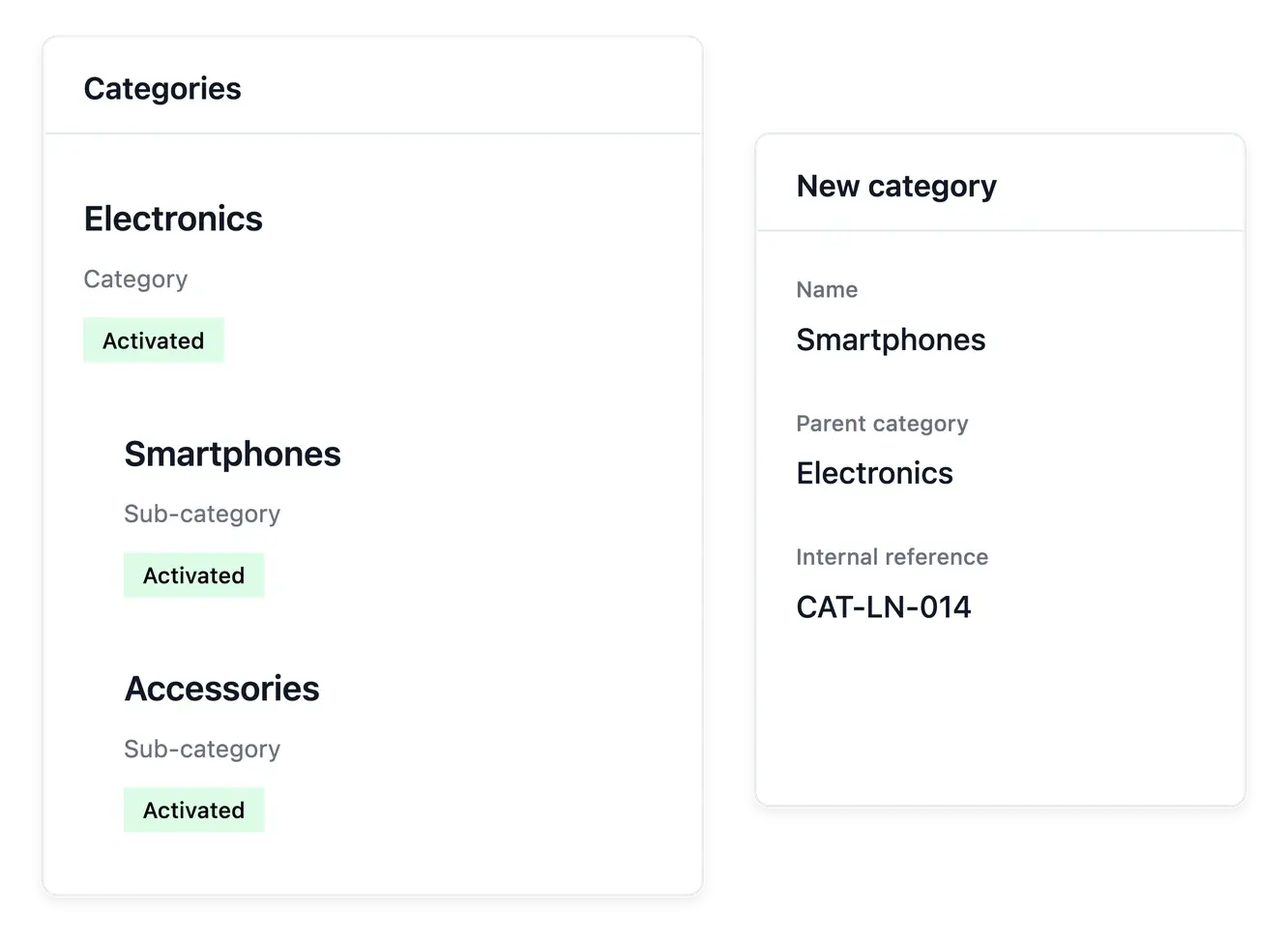
Build shelves that match your products
Create categories and subcategories around the way customers look for your range. A parent category provides the larger family; its children give shoppers a more precise starting point as the catalogue grows.
Give each category a name, description, image and display order. Its record brings together the products assigned to it and the subcategories below it, making gaps or misplaced items easier to spot before publication.
Give every shelf a clear purpose
Names that guide browsing. Choose category names that describe the range customers expect. The category directory keeps the catalogue’s organization separate from individual product names.
Content for the category page. Maintain the category’s description and search information. Explain what belongs in the range before shoppers open an individual item.
Products in the right place. Review the items attached to a category when the range changes. A menu entry and the product’s category assignment are separate settings.
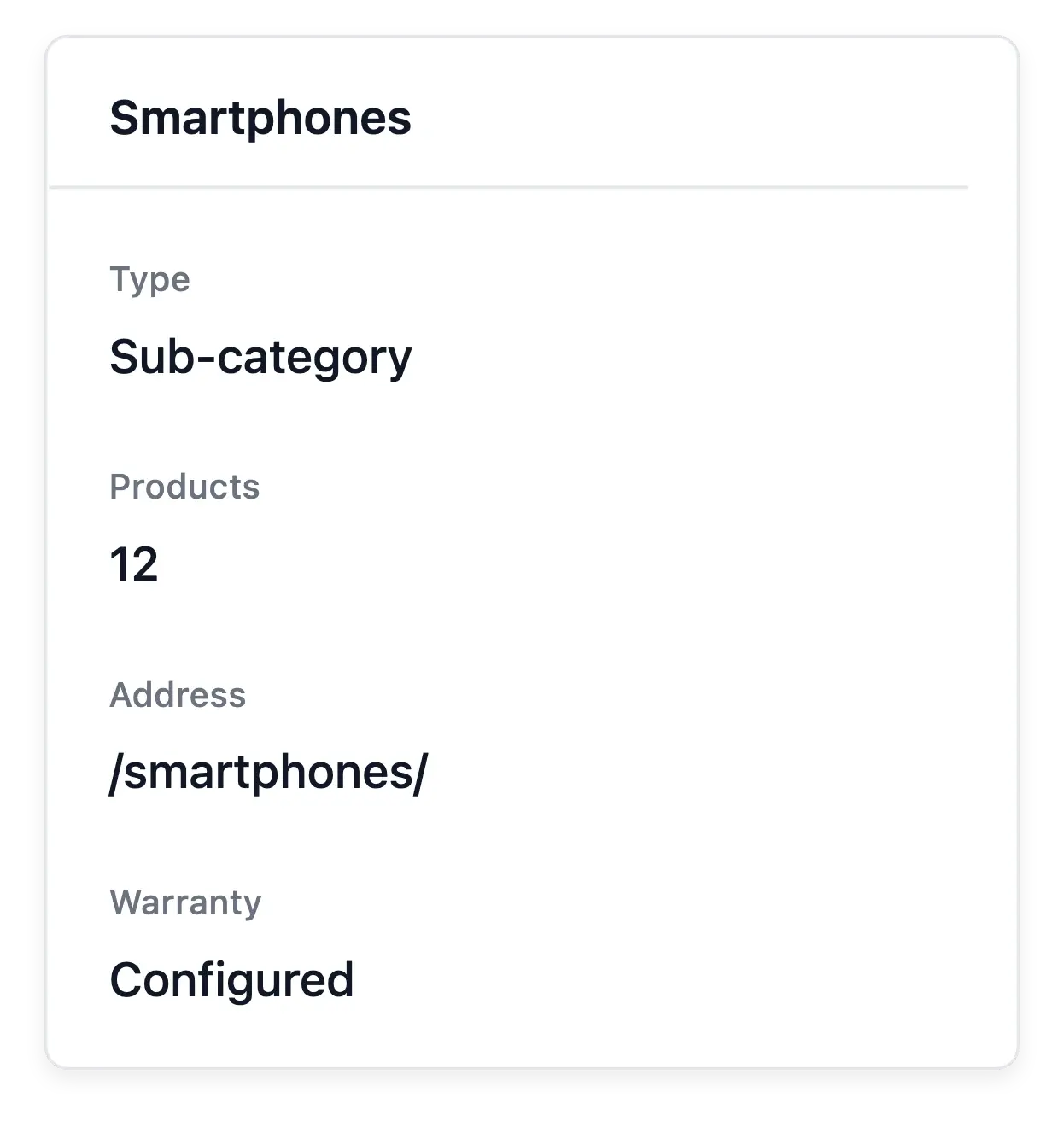

Connect catalogue structure to shop navigation
The category tree gives your category menu its content. Keep the category structure meaningful, then use navigation and theme settings to decide how visitors browse it. Product assignment and menu appearance are separate choices.
Publish or hide a category when your range changes. A category description explains the shelf, while the product record explains the item; using both avoids making customers infer every detail from a list of names.
Organize a catalogue shoppers can browse
Prepare the catalogue structure. Create the categories needed for your range and choose clear wording. Avoid creating another category just to resolve a spelling difference.
Assign the products. Select the appropriate category on each product. Check the resulting list to find misplaced references before opening the shop to customers.
Present the shelves. Arrange the category menu separately, then review the category pages and their wording. Catalogue structure supplies the content; navigation decides how it is reached.
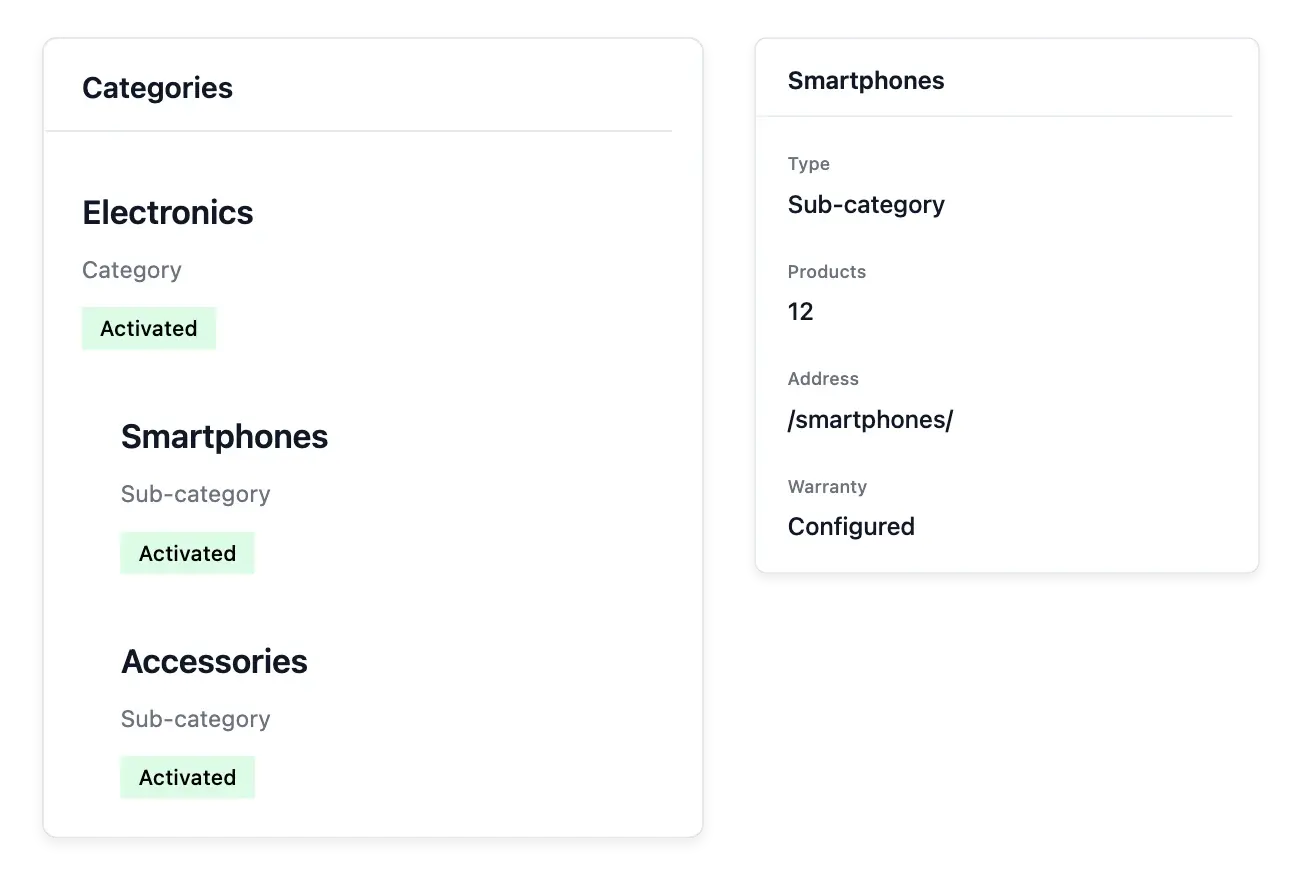
Help shoppers find their next purchase
Organize a growing range into recognizable families and useful subcategories.
Questions about Categories
Yes. Assign a parent category to build the levels your catalogue needs.
Open its record. The products and subcategories are available alongside its own information.
Yes. Add an image and description to give each shelf a recognizable presentation.
Yes. Category ordering is configurable, so the tree can follow your commercial priorities.
Yes. Its availability actions let you publish or withdraw it as your range changes.
No. It supplies the catalogue structure and content; the category menu and theme control their presentation.