Application and pages
Connect each business need to its working page
Inspect the application structure, functions and individual pages, including their route, presentation and search metadata.
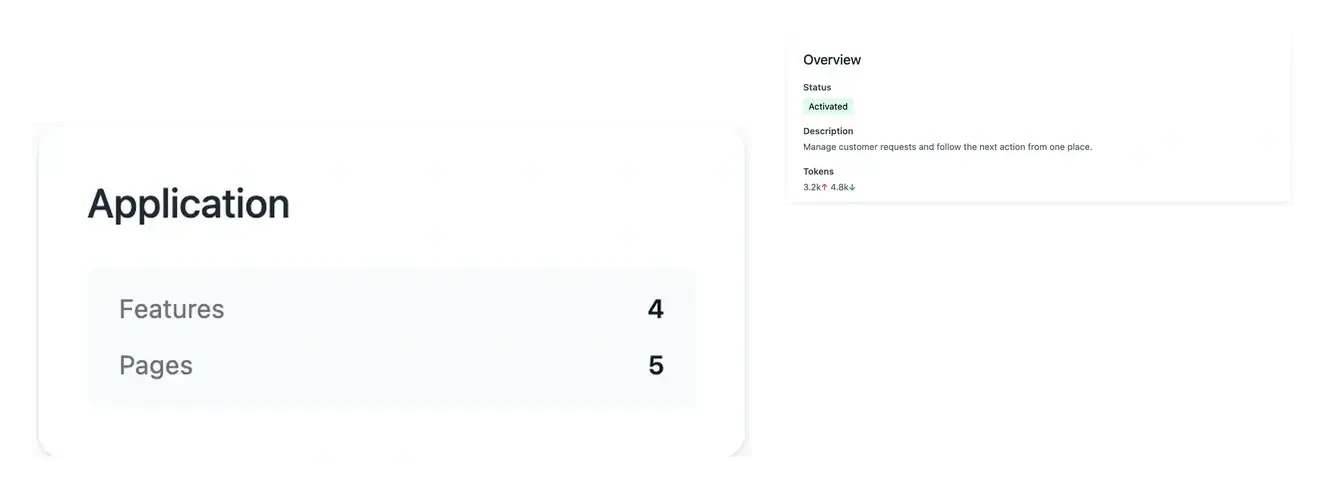
Understand the application beyond a list of screens
- Browse the structure
Move from business areas to functions and their associated pages.
- Inspect each page
Review its purpose, address, presentation and metadata.
- See build progress
Follow the states recorded for the application and its pages.
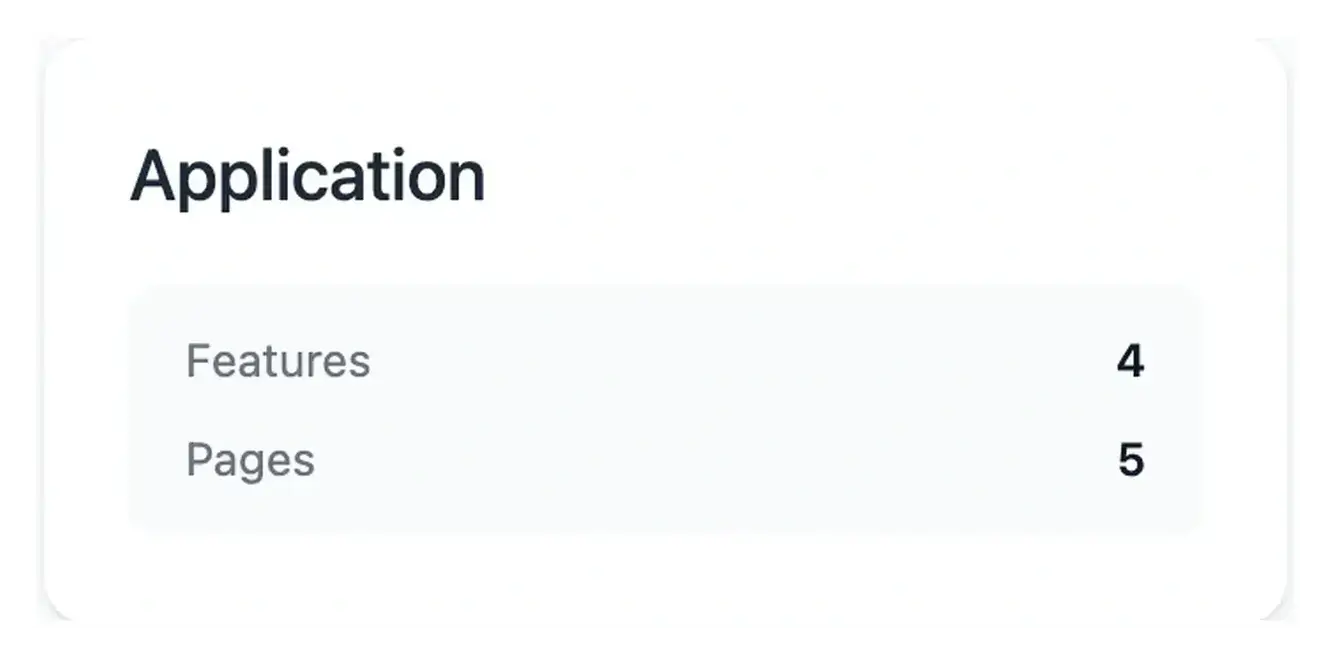
Find the screen behind a business need
The application view groups the work into areas and functions. Open the associated pages to understand how the planned functionality becomes a user journey.
Each page has its own details. Review the page definition, route, search metadata and graphic work in the corresponding views.
Review the journey your users will actually complete
Trace a task through the application. A business area contains functions, and each function leads to the pages needed by its users. Following that structure helps you see how a list, a detail and an action contribute to the same journey instead of reviewing each screen in isolation.
Check the purpose of a particular page. Open its information to understand the expected result and included scope. Use the available route, metadata or graphic views when relevant to that surface. The details connect the page’s presentation with the behavior it is intended to provide.
Give a change the correct target. When a working page needs an adjustment, its known address is useful context for Studio. Selecting the existing page keeps the request connected to the right function and project, which makes later review more precise.
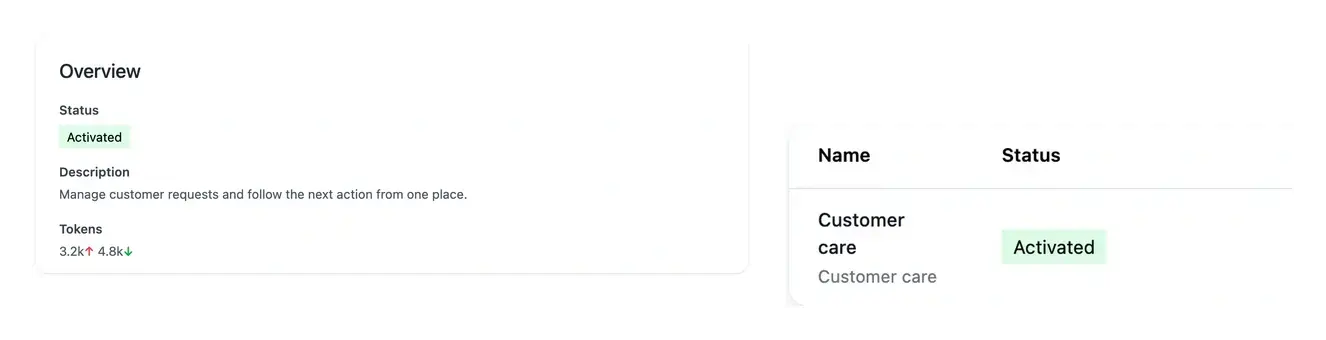
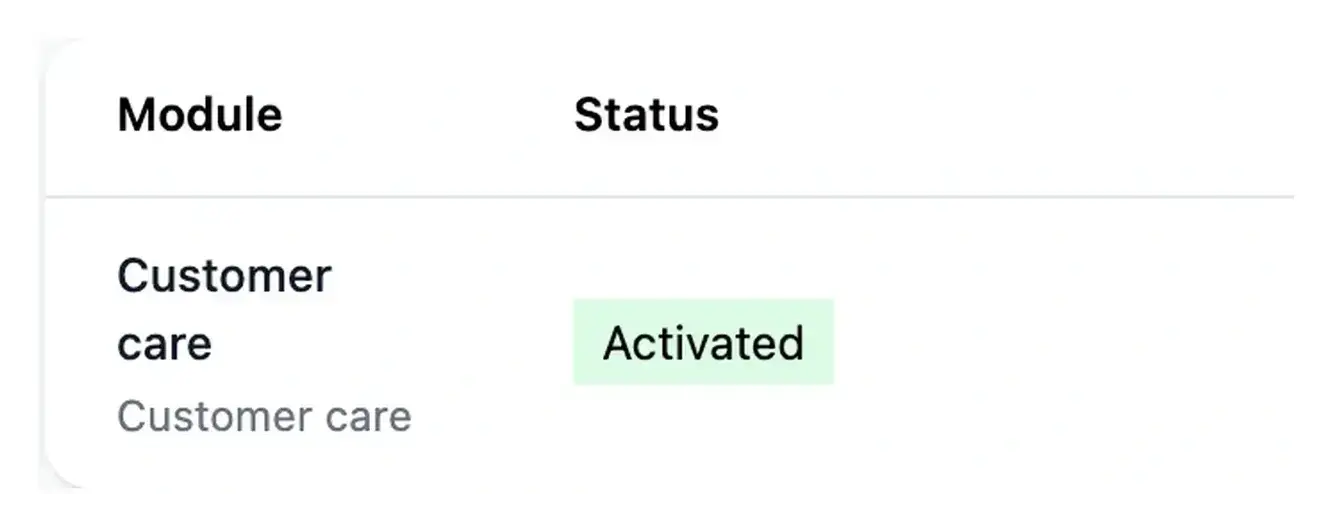
Target the right page when improving the application
Once a page exists, its address becomes useful context for a change. Paste the known project URL into Studio or find it by name to attach your request to the correct screen.
Test the resulting behavior in development before choosing a version for staging and production.
Find the screen behind a user task
Start with what a user wants to achieve, then inspect the corresponding function and page. Their descriptions, routes and state connect the planned behavior to an identifiable screen.
Keep this page context when reporting a problem or requesting an evolution. A precise target makes the request easier to interpret and the resulting change easier to test.
From application structure to a verified user task
Find the relevant function. Start with the business area concerned and inspect its associated functions. Choose the application or administration context relevant to the user.
Inspect the page. Read its definition, current state and available details. Distinguish a planned page from one whose working implementation is available.
Test the complete journey. Check the ordinary case, important exception and links between pages. Use Studio for a targeted correction and Deployment to verify publication.
Review the application through the tasks it supports
Use the page structure to connect the business requirement, the working screen and the result your user should receive.
Questions about Application and pages
A business area groups related capabilities; its functions are implemented through the relevant pages. This structure helps you follow a user journey and locate the item concerned by a change.
Yes. Its expected behavior and preparation state can be inspected before the implementation is ready. Read the page state rather than treating every planned entry as an available screen.
Tools depend on the page’s surface and state. Public address, search metadata and graphic details are offered where relevant; inspect the controls available for that particular page.
Complete the intended task, inspect the result and test an important exception. Also verify the links that bring the user to the next step. Appearance is one part of the review, not the whole journey.
Select the existing page in Studio by its known URL or name. Describe the actual and expected behavior with an example, then verify the resulting development page before publication.